Claude is an AI assistant made by a company called Anthropic. You type what you need in plain words, and it writes, reads, explains and organizes for you. Think of it as a very fast new hire who never gets tired of your questions.
This guide gets you from nothing to your first look around. You don't need to install anything to start.
Step 1: Go to claude.com and click Try Claude

Open your web browser and type claude.com into the address bar at the top. The Try Claude button is in the top right corner.
Step 2: Sign up with your email
Claude asks for your email address. Type it in and click continue. Claude emails you a sign-in code or link. Open that email, then type the code or click the link. You may also be asked for your name and to agree to the terms.
Step 3: Start on the Free plan
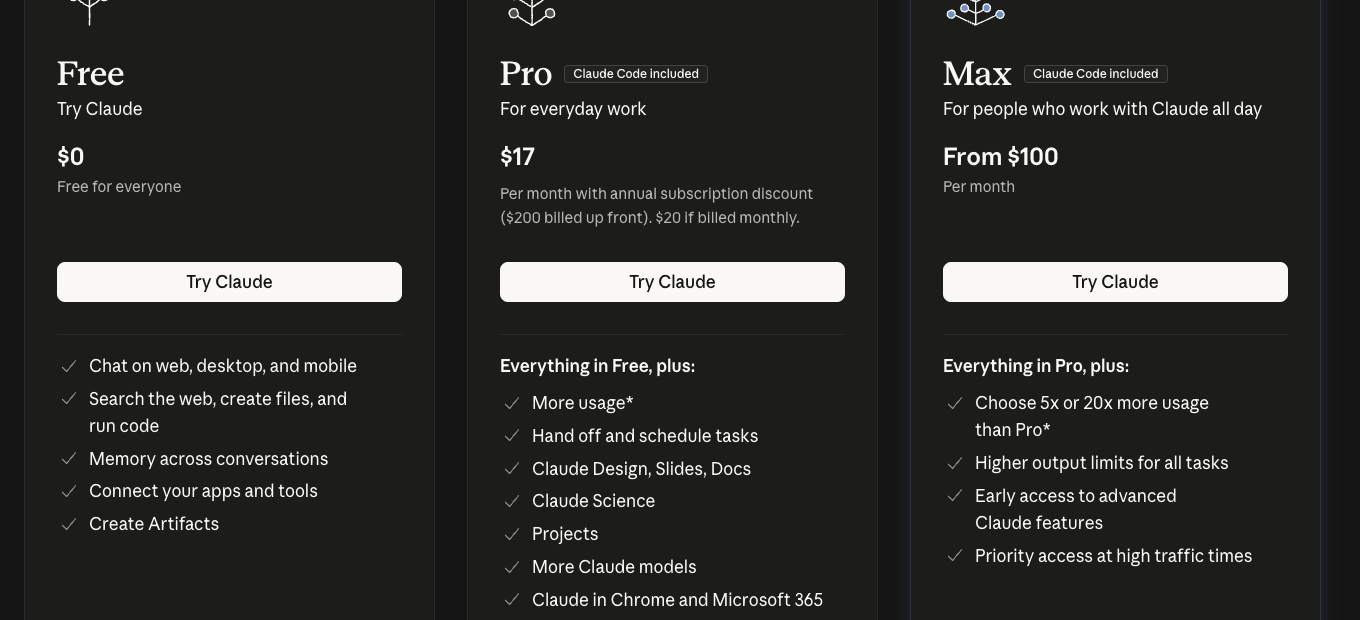
When you sign up you start on Free, which costs nothing. Free lets you chat on the web, your computer and your phone, upload files, and search the web.
Pro is $17 a month if you pay for the year ($200 up front), or $20 month to month. It gives you more use each day, plus features like Projects, which the later guides cover. Max starts at $100 a month and is for people who use Claude all day.
Step 4: Learn the three parts of the home screen
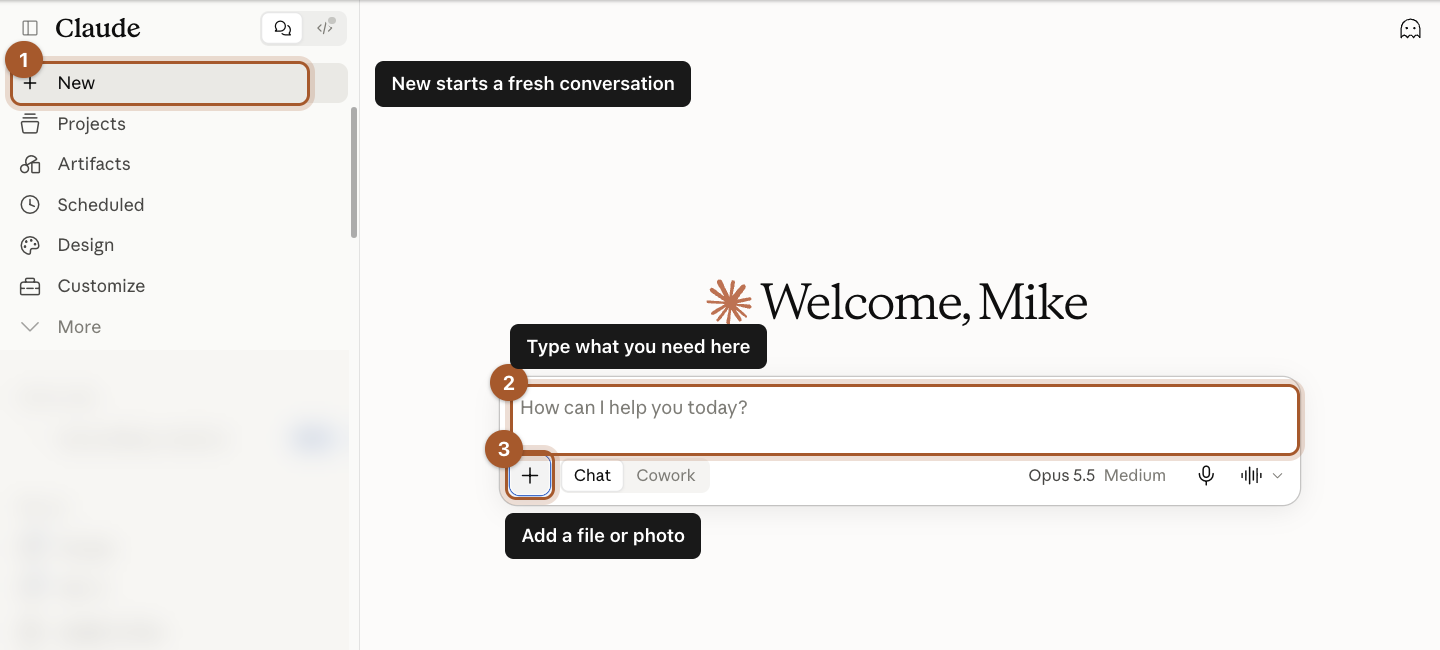
After you sign in you land on the home screen. Only three things matter today:
- New (top left) starts a fresh conversation. Use it whenever you switch topics.
- The message box in the middle is where you type what you need.
- The + button adds a file or a photo for Claude to look at.
Everything else on the left side is a list of your past conversations and extra features. You can ignore it for now.
Step 5: Put Claude on your computer and phone (optional)
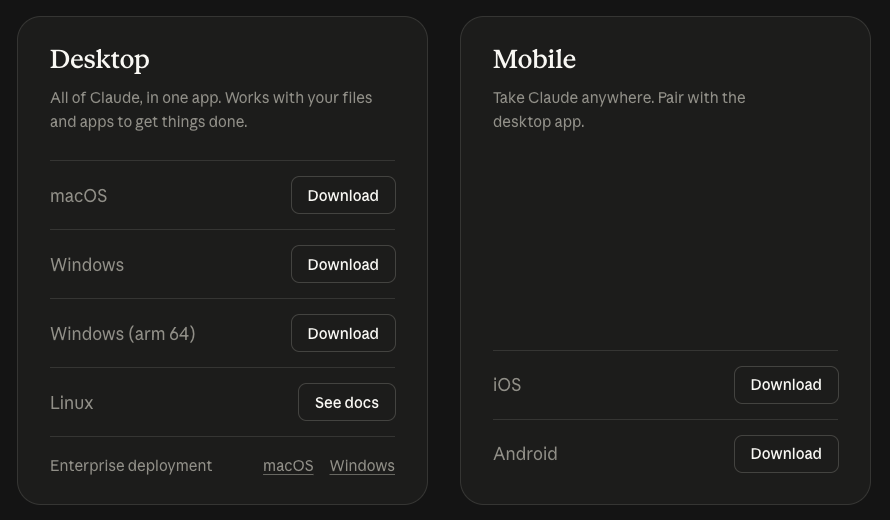
Claude works fine in your web browser. If you'd like it one click away, go to claude.com/download and pick your computer (Mac or Windows) or your phone (iPhone or Android). Sign in with the same email and your conversations follow you.
Step 6: Know where to find plans and apps later
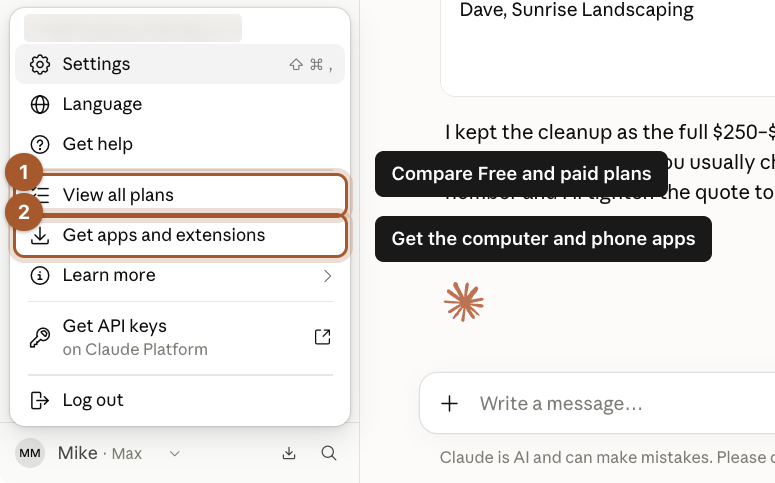
Click your name in the bottom left corner. This menu is where you'll find Settings, View all plans (to upgrade or check what you pay) and Get apps and extensions. You'll use Settings in the privacy guide.
Screenshots taken September 24, 2026. Claude changes its look now and then. If a button has moved, look for the same words nearby.