Claude can do more than write. Describe a small tool you wish you had, like a quote calculator, a checklist or a schedule planner, and it builds a working one right in the chat. Claude calls these artifacts.
You don't need to know anything about code. You just describe it the way you'd describe it to a person.
Our example: a quote calculator for a made-up landscaping company, to use on a phone at a customer's house.
Step 1: Describe the tool, with your real numbers
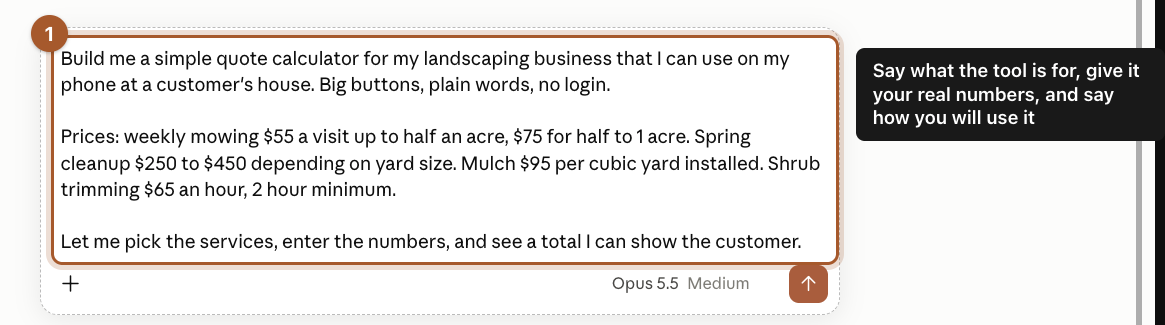
Start a New chat and describe three things: what the tool is for, the numbers it should use, and how you'll use it. We wrote:
Build me a simple quote calculator for my landscaping business that I can use on my phone at a customer's house. Big buttons, plain words, no login.

Prices: weekly mowing $55 a visit up to half an acre, $75 for half to 1 acre. Spring cleanup $250 to $450 depending on yard size. Mulch $95 per cubic yard installed. Shrub trimming $65 an hour, 2 hour minimum.

Let me pick the services, enter the numbers, and see a total I can show the customer.
Step 2: Try the tool it builds
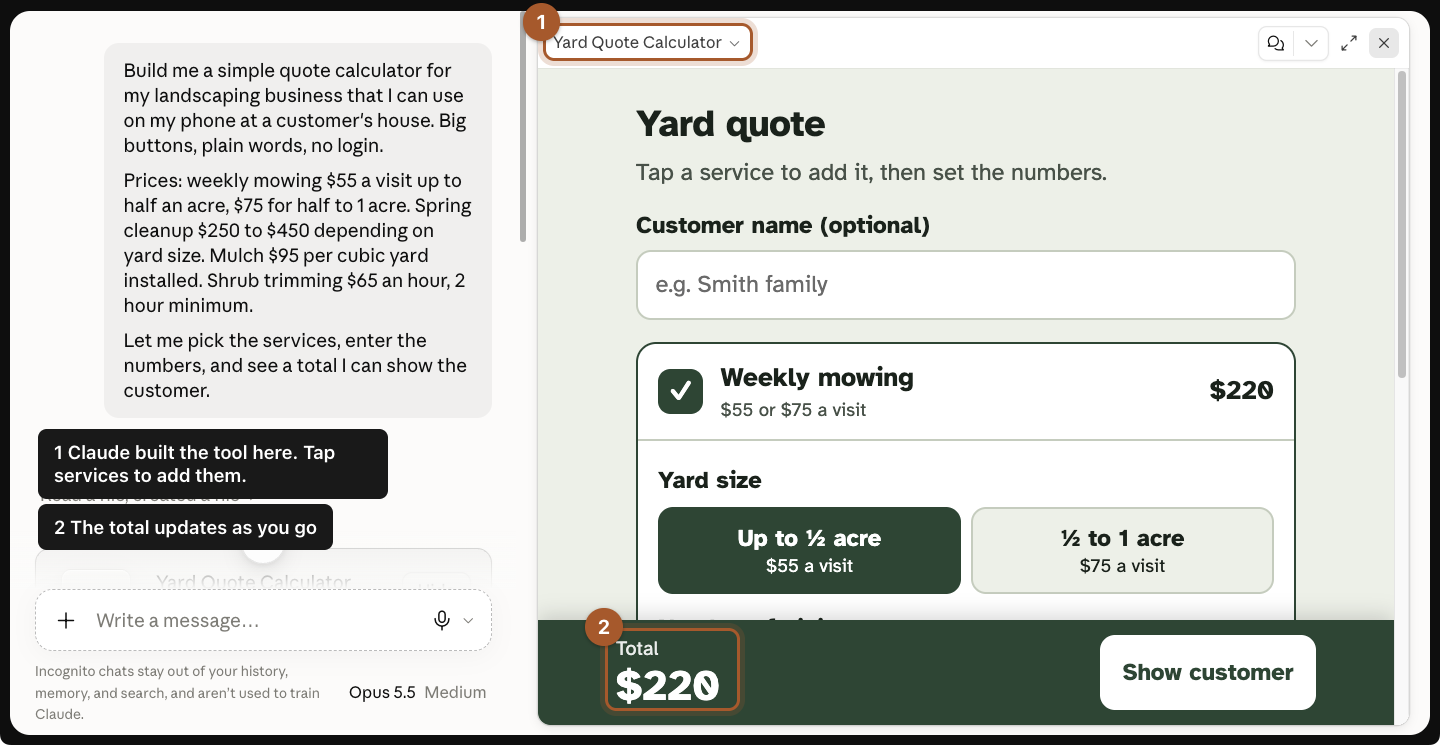
In about a minute, the tool opens in a panel on the right. It works right there: tap a service, pick the options, and the total at the bottom updates.
Test it with a real job you've quoted before. If a number is off, or you want a change, just say so in the chat:
Change mowing to default to 4 visits a month, add a 10% discount button for returning customers, and make the total bigger.
Step 3: Save, share or export it
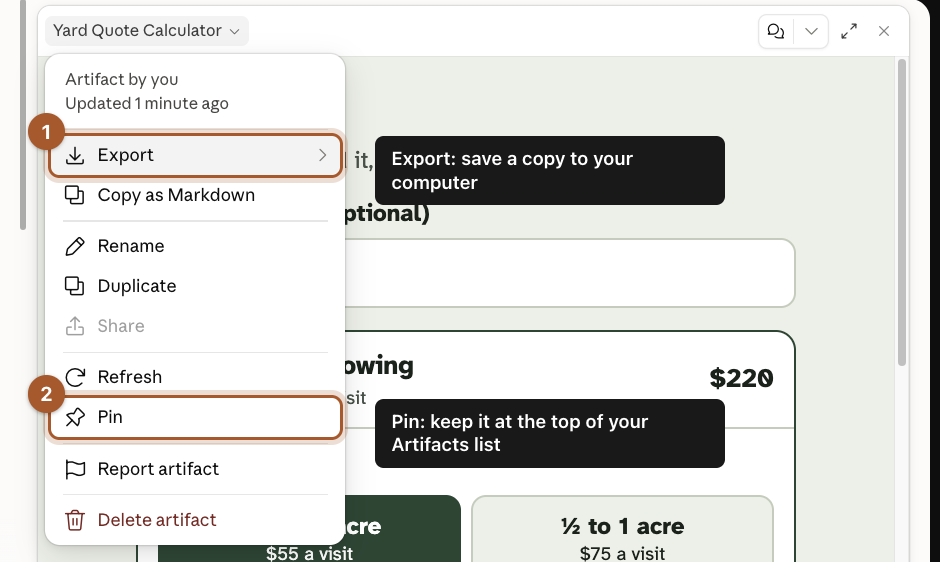
Click the tool's name at the top of the panel to open its menu.
- Export saves a copy to your computer.
- Pin keeps it at the top of your Artifacts list (in the left menu), so you can find it next time.
Share gives you a link so someone else, like your crew lead, can use it too. It works in regular chats. It's greyed out in incognito chats like the one in our screenshot.
Build it right the first time with a tool spec
The first request above works, but you'll go back and forth fixing things. A tool spec is a short description that answers the questions Claude would otherwise guess at. It takes five minutes and saves most of the back-and-forth.
A good tool spec covers six things:
- Who uses it, and where. "Me, on my phone, in a customer's yard" gets you big buttons.
- What goes in. The things you'll type or pick.
- The prices and rules, including minimums, defaults and discounts. Anything you leave out won't be in the tool.
- What comes out. What the finished screen shows, and who sees it.
- The don'ts. No login, don't save customer details, no tiny text.
- A test case you already know the answer to, which you'll use in step 4.
Here's the spec we used for a new version of the quote calculator:
TOOL SPEC: Yard quote calculator

Who uses it: me, standing in a customer's yard, on my phone. Sometimes the customer looks at the screen with me.

What goes in: the customer's first name, yard size (under half an acre, or half to 1 acre), and the services they want.

Prices and rules: Weekly mowing is $55 a visit under half an acre, $75 for half to 1 acre, and defaults to 4 visits a month. Spring cleanup is $250 small, $350 medium, $450 large. Mulch is $95 per cubic yard installed, 2 yard minimum. Shrub trimming is $65 an hour, 2 hour minimum. Returning customers get 10% off the total, as an on/off switch.

What comes out: each line with its price, then the total. A Show customer button switches to a clean view with just their name, the services, the total, and "Quote good for 30 days. Sunrise Landscaping."

Don'ts: no login, don't save customer details, no tiny text.
The tool came back with the minimums built in: the minus button stops at 2 yards of mulch and 2 hours of trimming, so you can't quote below them by accident.
Step 4: Test it with a quote you already know the answer to
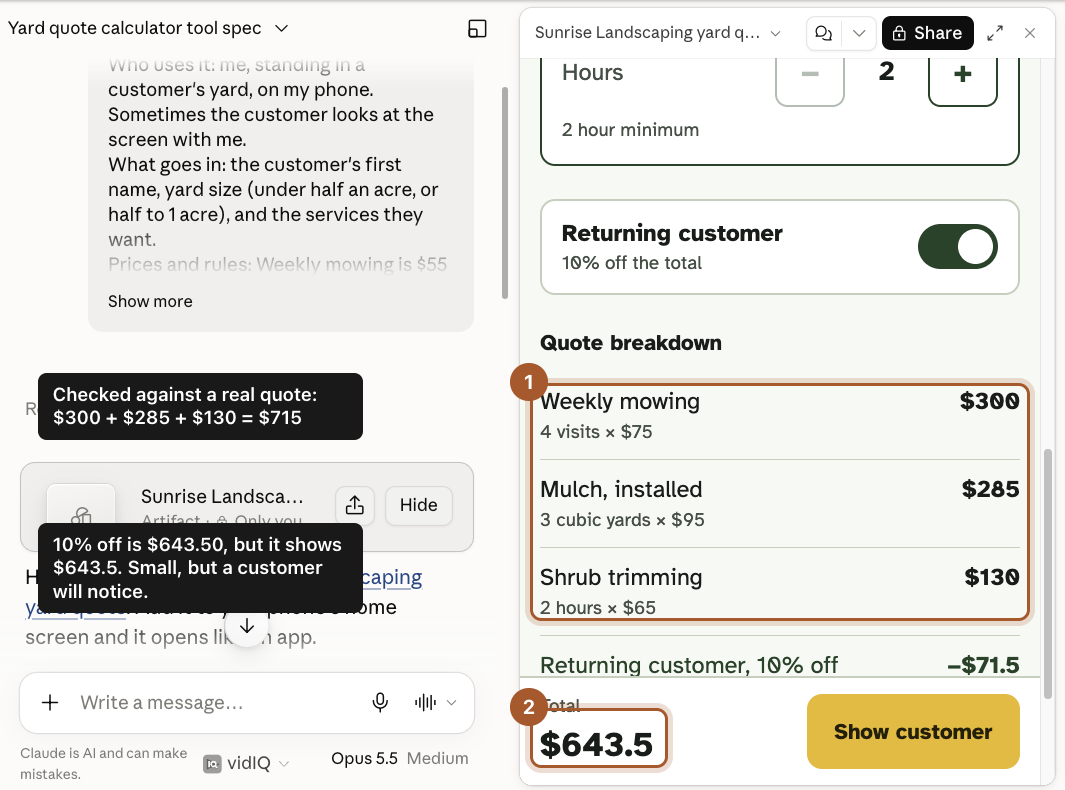
Before you use it with a customer, enter a job you've already priced by hand. Ours: half to 1 acre, 4 mowing visits, 3 yards of mulch, 1 hour of trimming (which the 2 hour minimum turns into 2), returning customer.
By hand: $300 + $285 + $130 = $715, minus 10% = $643.50.
- The line items were right.
- The total showed $643.5. The math was right, but a price without the cents looks sloppy in front of a customer.
That's exactly the kind of thing you only find by testing with real numbers.
Step 5: Tell Claude what you found, and check the fix
Say what you tested, what was wrong and what else you want, in one message:
I tested it on a real quote and the math is right. Two fixes: always show money with cents, like $643.50 not $643.5. And in the customer view, show the returning-customer discount as its own line so they can see what they saved.
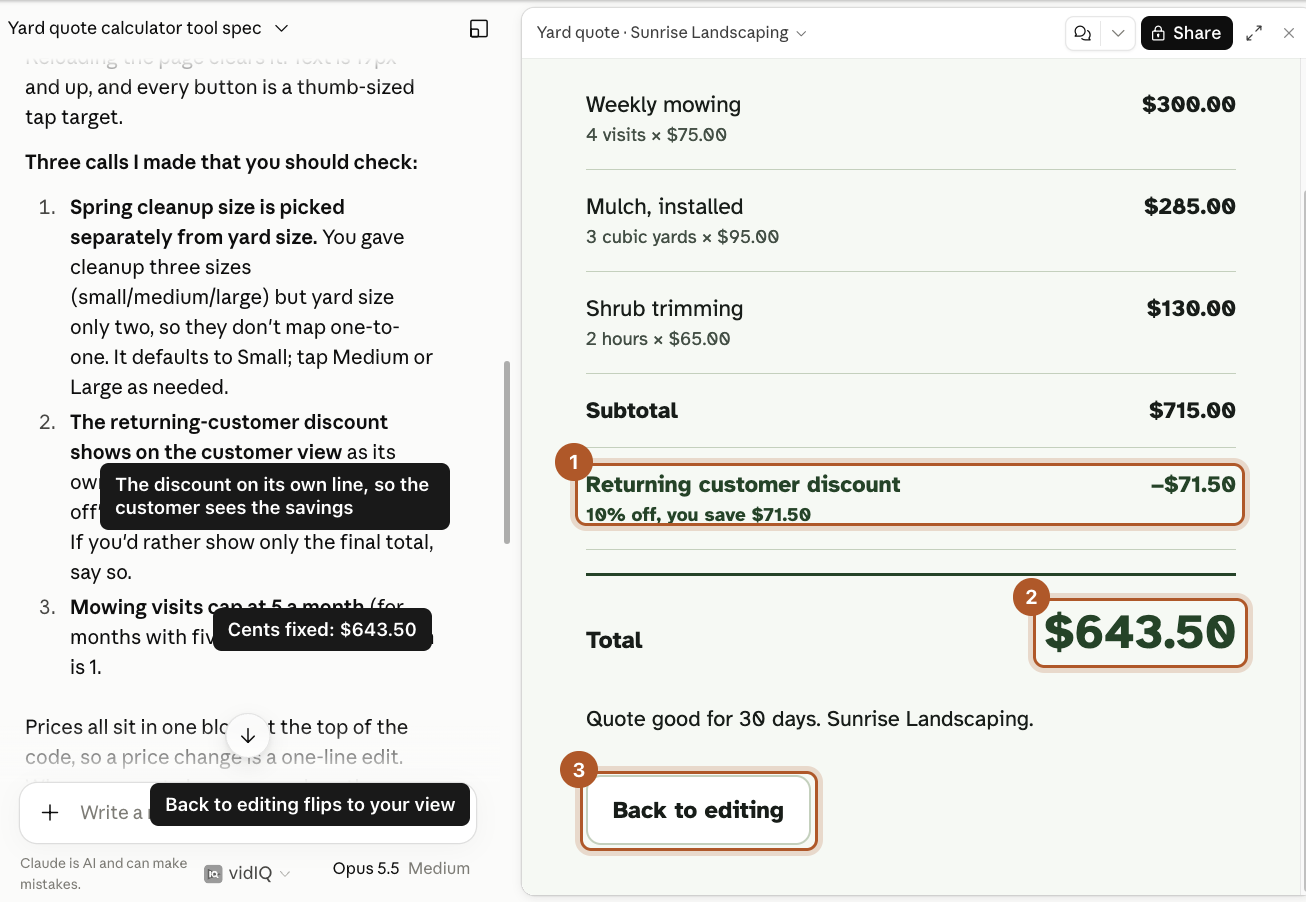
Claude updated the same tool, at the same link. We entered the test quote again and tapped Show customer:
- The discount is on its own line, so the customer sees what they saved.
- The total shows $643.50.
- Back to editing flips back to your view.
Other tools owners build
- A job checklist for a new hire, with boxes to tick.
- A pricing sheet that shows three package options side by side.
- A weekly schedule planner for your crew.
- A tip calculator or mileage log.
- A customer intake form you fill out on a phone call.
Screenshots taken September 24, 2026. Claude changes its look now and then. If a button has moved, look for the same words nearby.