So far you've been copying things into Claude: an email, a spreadsheet, meeting notes. Connectors let Claude look things up in your apps directly. Then you can ask "what did the Hendersons say about the fence?" and Claude can check your email itself.
That's powerful, and it means Claude can see what's in those apps. So this guide is as much about what to check as about how to connect.
Step 1: Find connectors in Customize
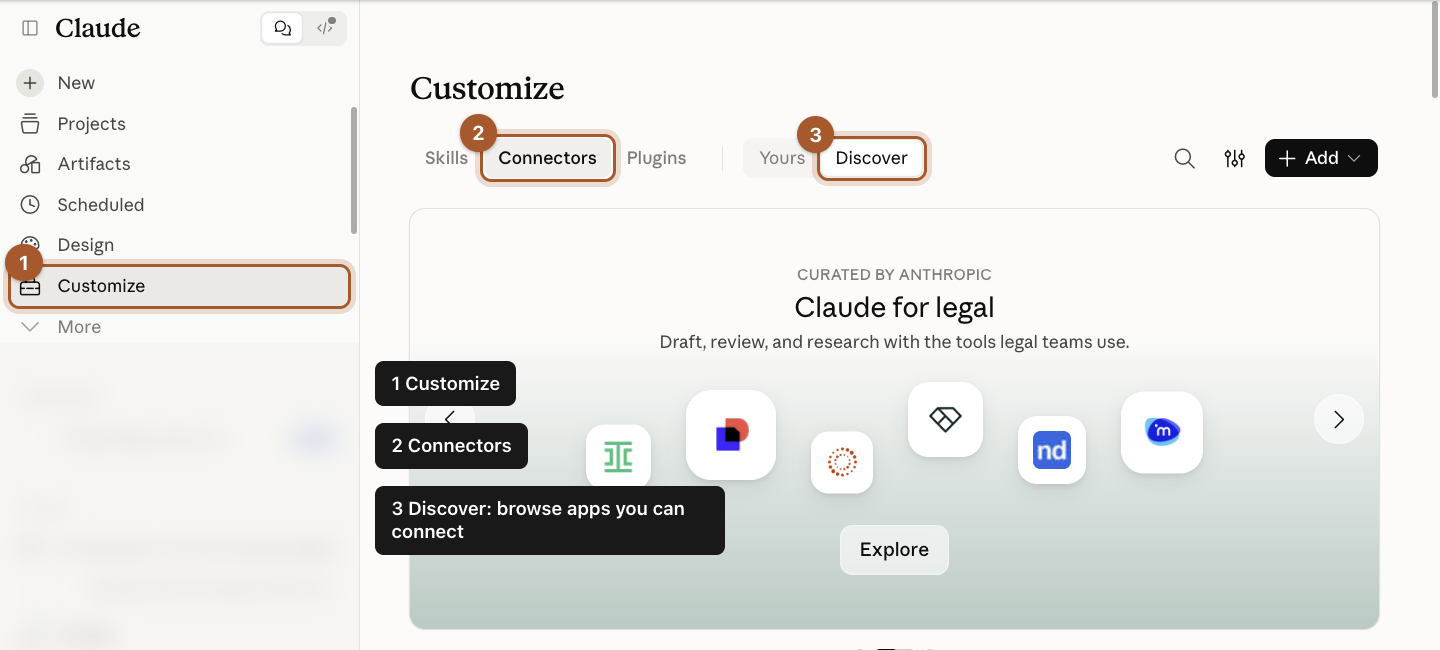
- Click Customize in the left menu.
- Click Connectors at the top.
- Click Discover to browse apps you can connect. Yours shows the ones you've already connected.
Step 2: Know what the + and the green check mean
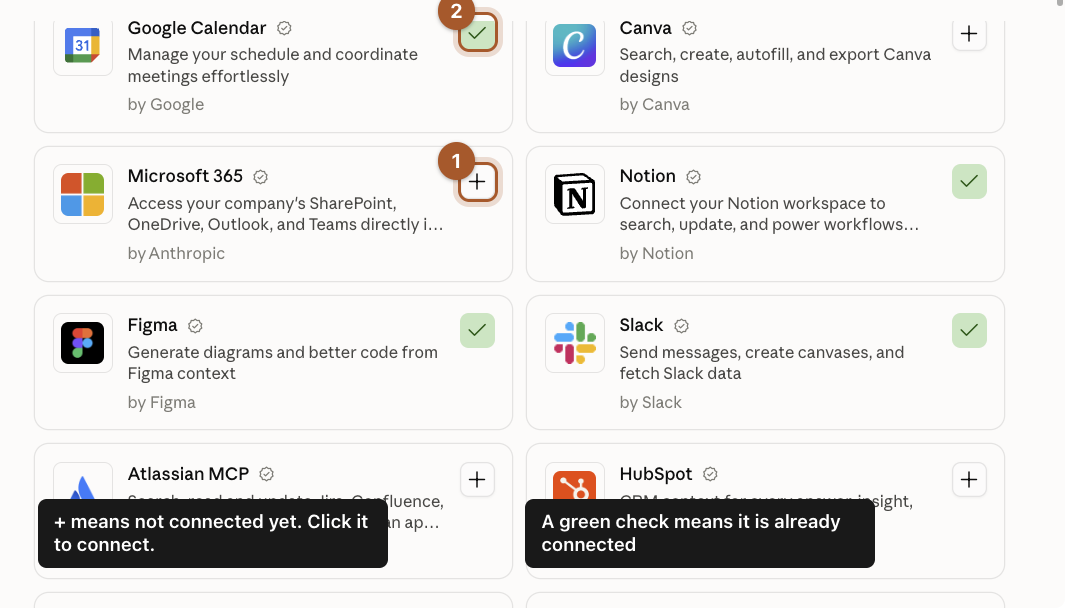
Each app has a card.
- A + means it isn't connected.
- A green check means it's already connected.
You can search for an app with the magnifying glass at the top.
Step 3: Read the connector's page before you connect
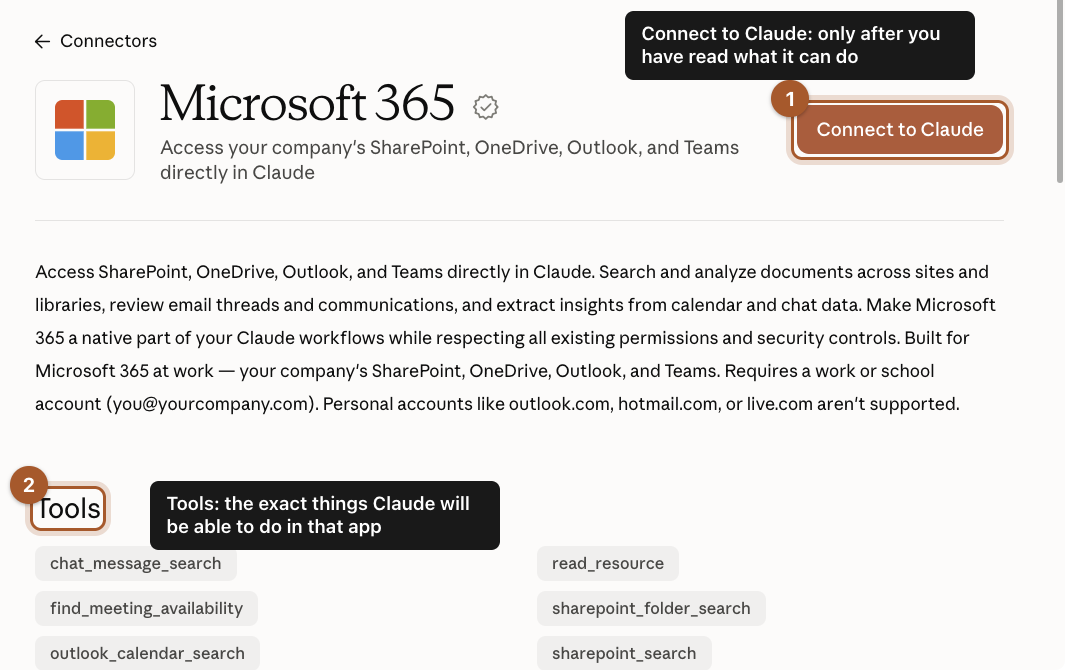
Click a card to open its page. Before you click Connect to Claude, read two things:
- The description: what the app is and what account it needs. This one only works with work or school Microsoft accounts, not personal Outlook addresses.
- Tools: the exact things Claude will be able to do in that app, like "outlook_email_search". If it can only read and search, that's lower risk than one that can send or delete.
When you click Connect to Claude, the app itself (Google or Microsoft, for example) asks you to sign in and approve access. That approval screen is the one that matters. Read it.
When to use connectors, and when not to
Good uses:
- "Find the last three emails from Tom about the Westside job and summarize where we left it."
- "What's on my calendar Thursday, and when's my first free hour?"
- "Find our 2025 price list in Drive and tell me what we charged for mulch."
Skip connectors when:
- The question is about something public, like a law or a competitor. Plain Research works better.
- You're in a chat you might share with someone else.
- You're asking about a sensitive person or situation. Use an incognito chat and paste only what's needed.
Screenshots taken September 24, 2026. Claude changes its look now and then. If a button has moved, look for the same words nearby.