Claude can read what you give it: invoices, bank exports, contracts, price lists, even a phone photo of a whiteboard. Instead of scrolling through a spreadsheet yourself, you ask a question and get an answer.
In our example, a made-up landscaping company uploads a month of expenses and asks where the money went.
Step 1: Click the + button
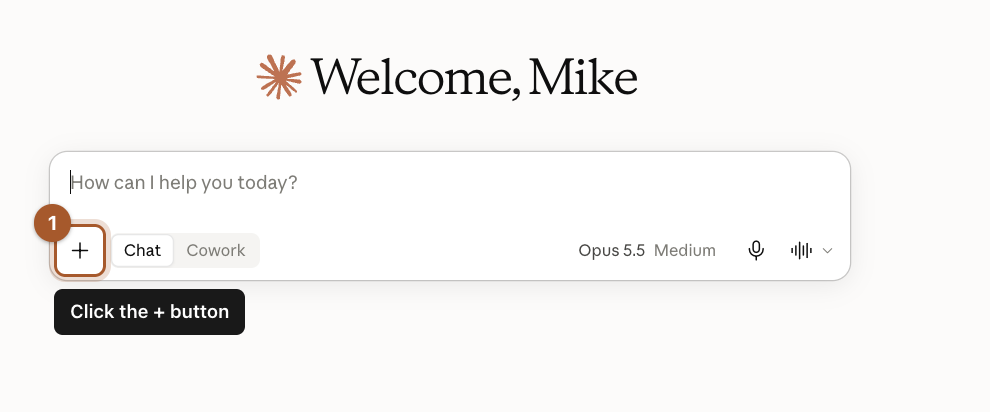
Start a New chat, then click the + button in the bottom left corner of the message box.
Step 2: Click Add files or photos
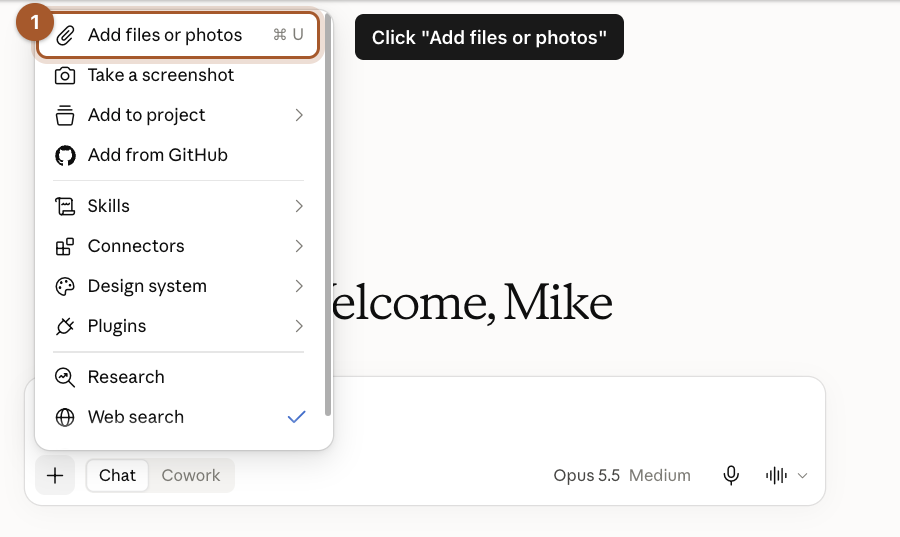
A menu opens. Click Add files or photos at the top. You can ignore the rest of the menu for now.
Step 3: Pick the file on your computer
A window opens showing the files on your computer. Find your file, click it once, then click Open.
Step 4: Ask your question, then send
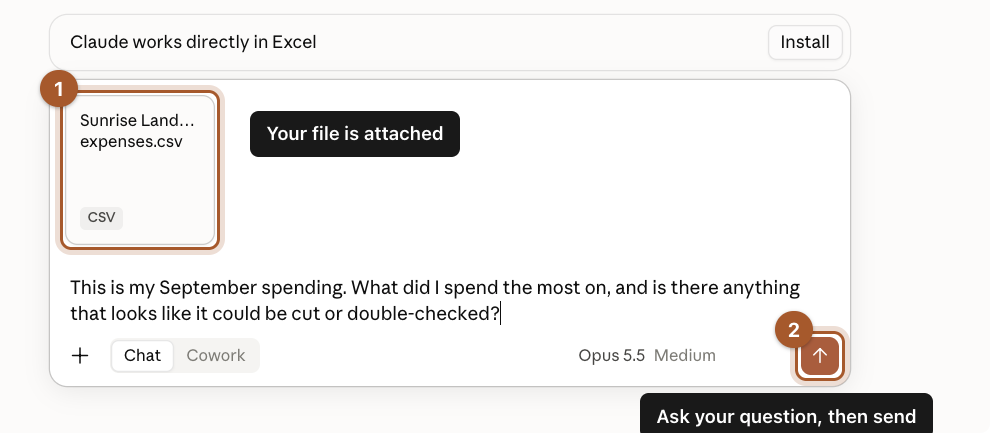
Your file appears as a small card above the message box. That means it's attached. Now type your question and click the orange arrow. We asked:
This is my September spending. What did I spend the most on, and is there anything that looks like it could be cut or double-checked?
Step 5: Read the answer, then spot-check it
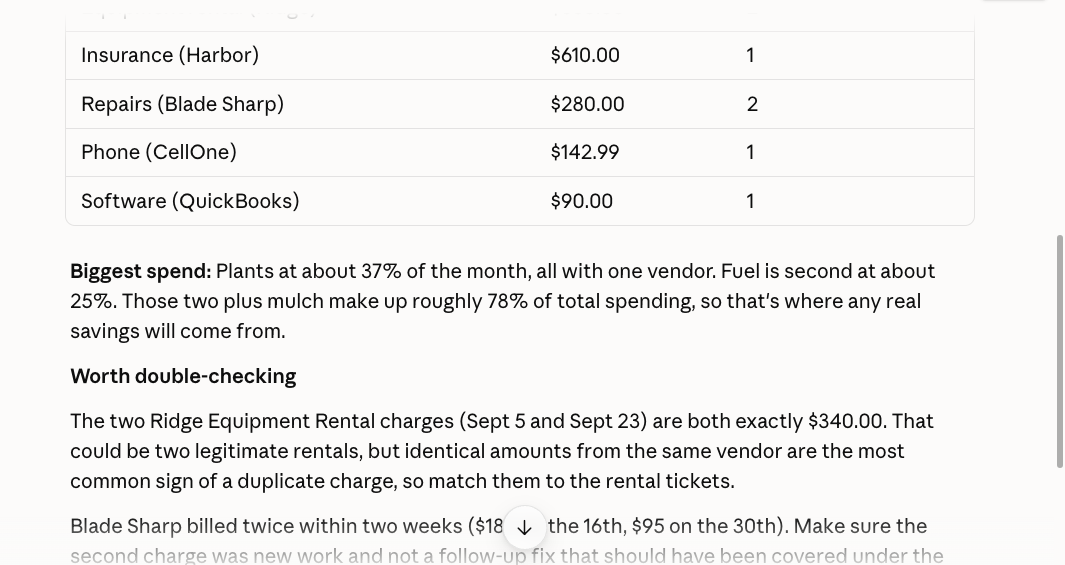
Claude added everything up, sorted it by category, and pointed out two identical $340 equipment rental charges as a possible duplicate. That's the kind of thing that's easy to miss when you're tired.
What kinds of files work
- Documents: PDF, Word, plain text, and web pages.
- Spreadsheets: Excel and CSV exports from your bank, QuickBooks or point-of-sale system.
- Pictures: photos and screenshots.
- Size: each file can be up to 30 MB. For PDFs of 100 pages or fewer, Claude also looks at charts, images and tables, not just the words.
Good first files to try
- A supplier invoice: "Does anything on here look higher than usual?"
- A contract or lease: "Explain this in plain English. What should I watch out for?"
- A bank export: "What are my recurring charges?"
- A photo of your whiteboard: "Turn this into a to-do list."
Screenshots taken September 24, 2026. Claude changes its look now and then. If a button has moved, look for the same words nearby.