Out of the box, Claude writes in a polished, general voice. That's fine for some things, but a note from you to a customer should sound like you.
The fix takes ten minutes. Show Claude a few things you actually wrote, let it describe your style, then save that description where Claude will always see it.
Step 1: Paste a few of your own emails and ask for rules
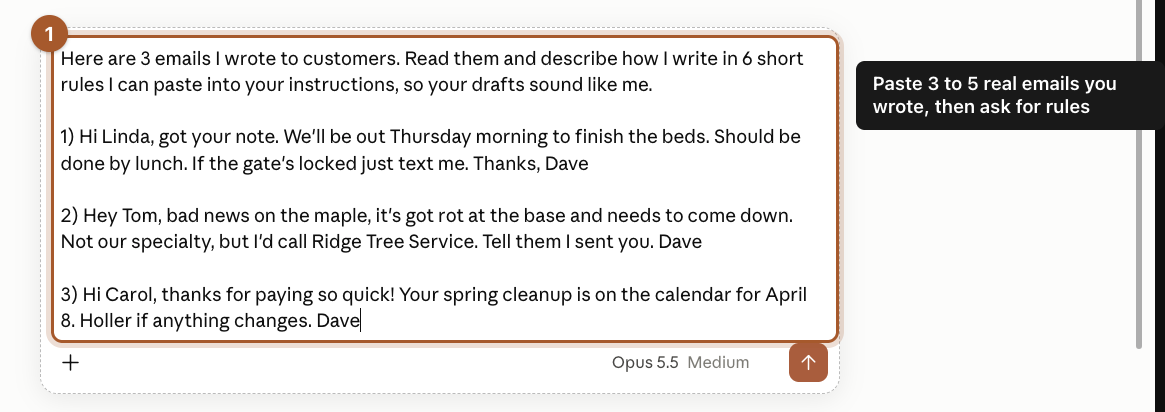
Start a New chat. Copy 3 to 5 short emails or texts you wrote to customers, ones you think sound like you. Paste them in under this request:
Here are some emails I wrote to customers. Read them and describe how I write in 6 short rules I can paste into your instructions, so your drafts sound like me.
Step 2: Read the rules and copy them
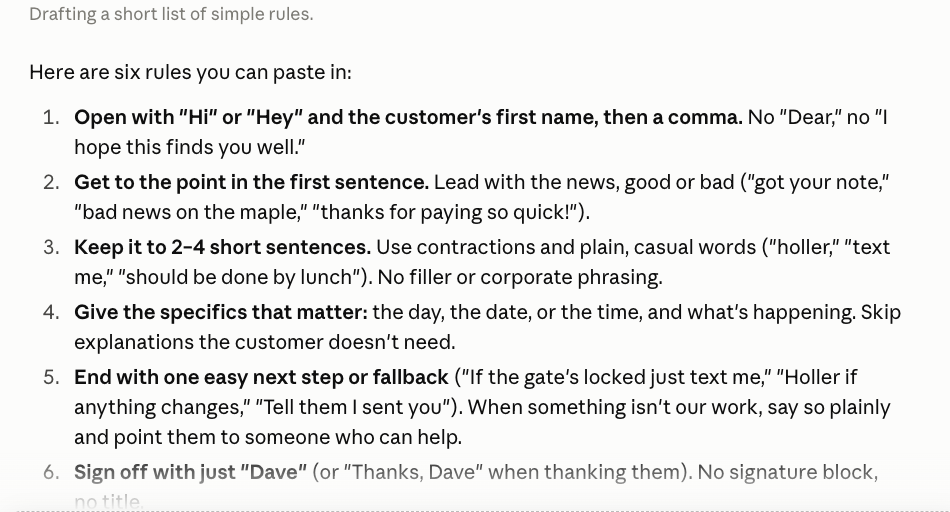
Claude describes your style as a short list of rules. In our example it noticed things like "get to the point in the first sentence" and "sign off with just Dave".
Read them. If one is wrong, say so ("I never use exclamation points") and ask for an updated list. When they look right, click the Copy icon under Claude's reply.
Step 3: Open Settings and click Account
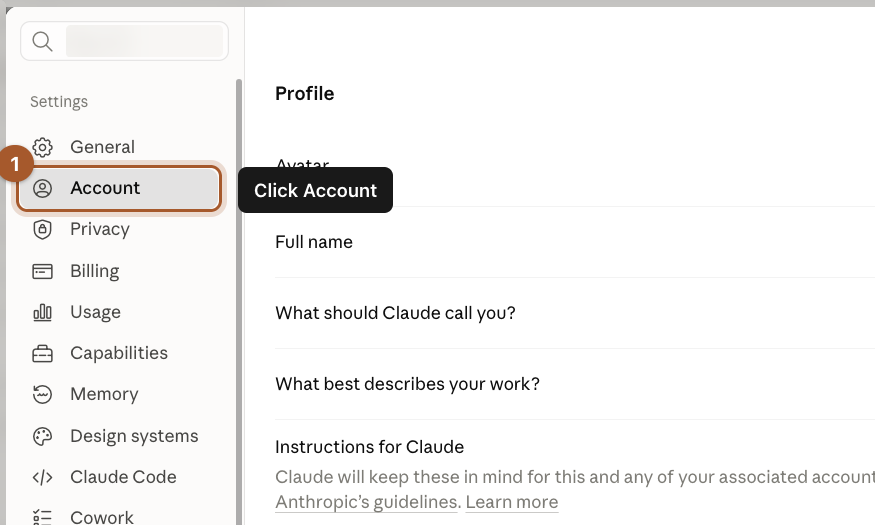
Click your name in the bottom left corner, then Settings. In the Settings menu, click Account.
Step 4: Paste your rules into Instructions for Claude
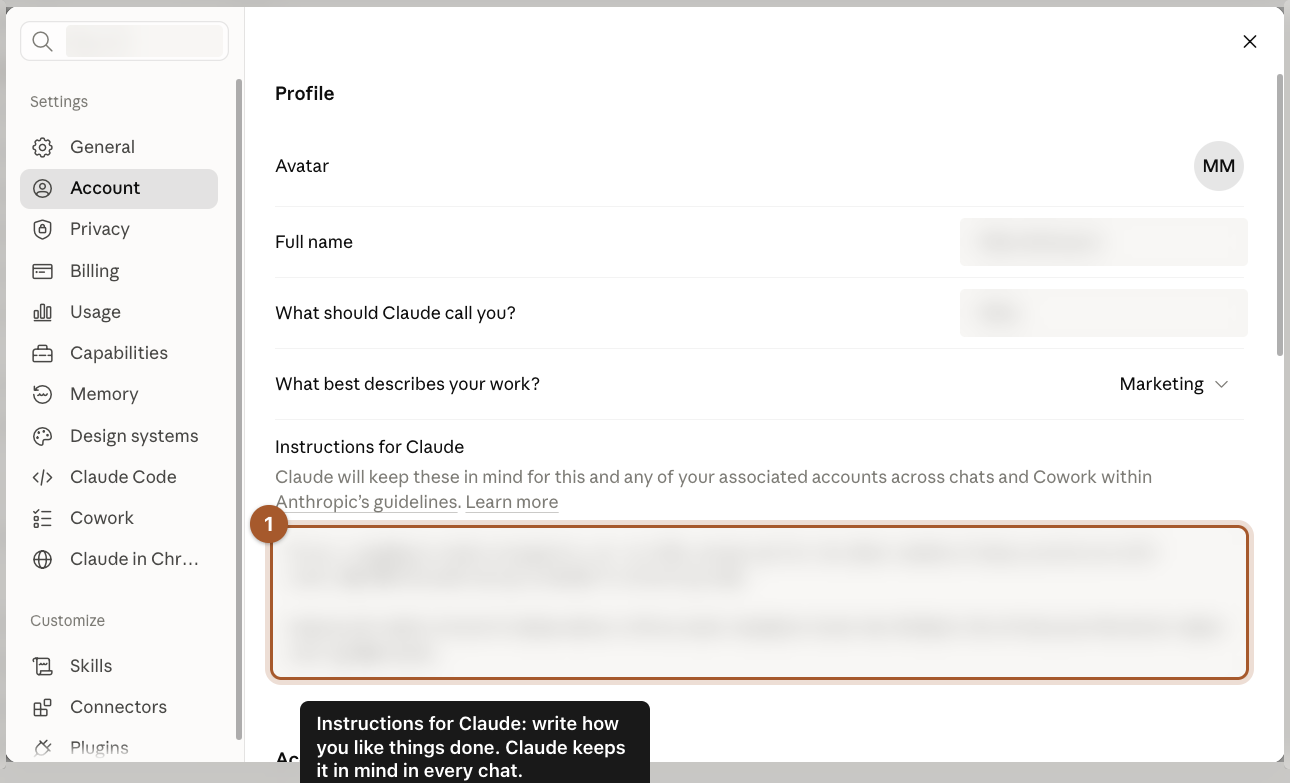
Find the box called Instructions for Claude. Click inside it and paste your rules (Command + V on a Mac, Ctrl + V on Windows). It saves on its own.
Step 5: Test it on a real email
Start a New chat and ask for something you'd normally write yourself, like a reply to a customer. Compare it with how you'd have written it. If it's close but not quite, add one more rule to your instructions.
Screenshots taken September 24, 2026. Claude changes its look now and then. If a button has moved, look for the same words nearby.