A customer emails to ask where their project stands. The answer is in three places: a thread in Gmail, a proposal in Google Drive and a task list in your project tool. You open all three, piece it together and write back. Twenty minutes later you do it again for someone else.
Claude can read all three places at once if you connect them. You ask one question in plain words, and it goes to each tool and brings back the answer.
By the end of this post, you'll know:
- What a Claude connector is, in plain words
- Which tools to connect first, and why the order matters
- How to connect Claude to Gmail and the rest, step by step
- Two asks to try in each of six common tools
- The safety rules we use at WE•DO before any tool gets connected
If you only have ten minutes, read the setup steps and connect Gmail. That alone is worth it.
01 / what-is-a-claude-connector
What is a Claude connector?
A Claude connector is a link between Claude and an app you already use, like Gmail or Google Drive. You sign in to the app once and approve access. After that, Claude can look things up in that app when you ask, and depending on the connector, it can also make changes, like drafting an email or updating a task.
Each connector covers one tool. Connect several and Claude can answer a question that needs more than one of them, in one conversation.
At WE•DO we run most of our day this way. Claude is connected to Gmail, Google Drive, ClickUp, QuickBooks, Figma and Shopify. One conversation reaches all of them.
02 / which-tools-should-you-connect-to-claude-first
Which tools should you connect to Claude first?
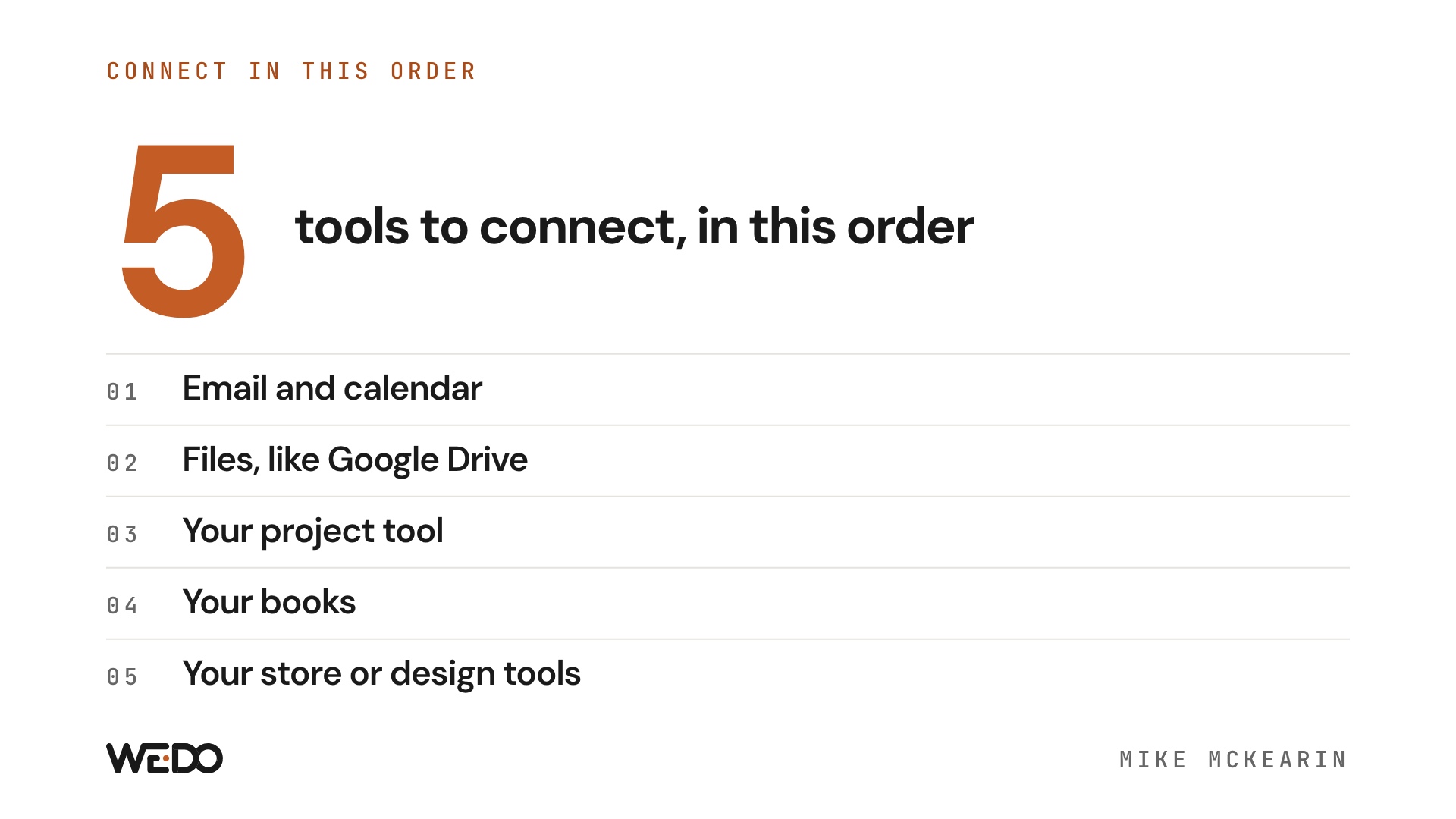
Connect the tools that hold your promises first, then the tools that hold the work. Here's the order we suggest, and why.
- Email and calendar. This is where you told people what you'd do and when. Most owners get the fastest win here, because "what did I promise this week?" is a question you ask every week.
- Files, like Google Drive. Proposals, contracts and notes sit behind those promises. Once Claude can read both, it can match an email to the document it refers to.
- Your project tool, like ClickUp. This shows what's in flight and who owns it.
- Your books, like QuickBooks. Where the money goes and which bills are due.
- Your store or design tools, like Shopify or Figma. The work itself, once the basics are in place.
Add one or two at a time. Use each for a few days before you add the next. You'll learn what a connector is good at faster when there's only one new thing to watch.
03 / how-do-you-connect-claude-to-gmail
How do you connect Claude to Gmail?
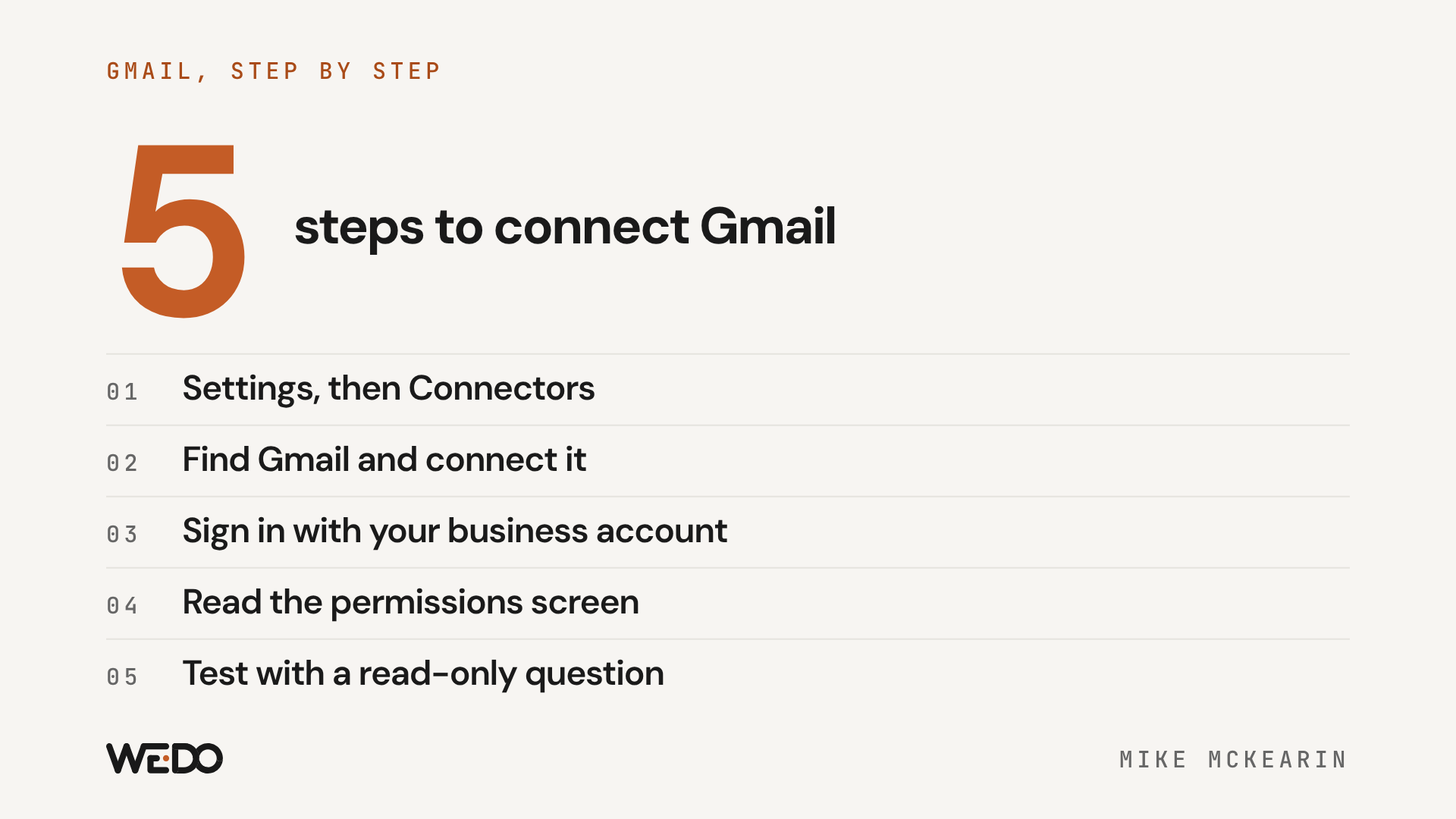
You connect Claude to Gmail from the Connectors page in Claude's settings, then sign in with your Google account and approve access. The same steps work for most tools. It takes a few minutes per tool.
- Open Claude and go to Settings → Connectors.
- Find Gmail in the list and choose to connect it.
- Sign in with the Google account that holds your business email.
- Read the permissions screen. It tells you what Claude will be able to see and do. Approve it if you're comfortable.
- Repeat for Google Calendar, so Claude can see dates next to the emails.
- Test it with a question that only reads. Try: "Look at my email and calendar for this week. What did I promise people, and what's due before Friday?"
Check the answer against your inbox the first few times. You're learning how much to trust it, and that takes a few rounds.
When you're ready for the next tool, go back to the same Connectors page. If a tool you use isn't listed there, check that tool's own help pages for a Claude or AI integration.
04 / what-can-you-ask-claude-once-each-tool-is-connec
What can you ask Claude once each tool is connected?
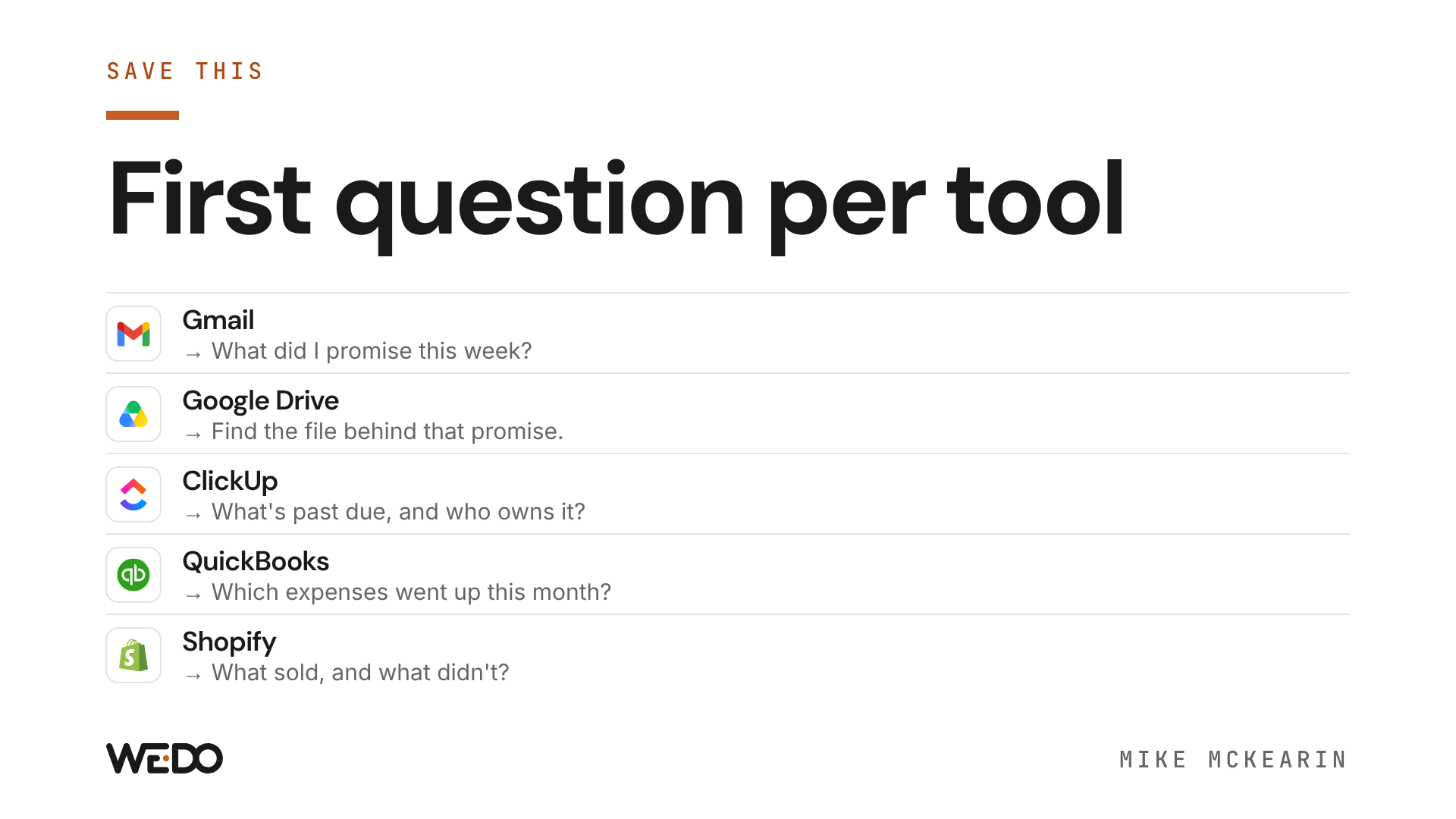
You can ask anything you'd ask an assistant who had a login to that tool. Here are two asks for each of six common tools, plus what we've done with a few of them.
Gmail
- "Which emails from customers have I left unanswered for three days or more? Draft a reply to each in my voice. Don't send anything."
- "Find every email from [name] this month and list what they asked me for."
We use Claude to build our monthly client email as a draft. It's waiting in our email tool for review, and a person sends it.
Google Drive
- "Find the last proposal I sent [name] and list what we promised."
- "Pull every file about [project] into one summary I can read in two minutes."
Our biggest Drive win so far: Claude read about 330 of my old notes, going back to 2015, and pulled out the 16 best stories for our newsletter. That would have taken me days.
ClickUp (or your project tool)
- "Which tasks are past due, and do any of them share the same due date?"
- "Which tasks have no person assigned? Suggest an owner for each."
The first one is a real ask from our week. It came back in minutes with our past-due client tasks, plus a clump of placeholder due dates we could clear in one pass.
QuickBooks (or your books)
- "Which bills are due in the next two weeks?"
- "Which expense categories went up the most compared to last month?"
Keep these to questions and drafts at first. Anything that moves money waits for your click.
Figma
- "Open [file] and list every screen in it, with a one-line description of each."
- "List every screen in [file] that still has placeholder text."
These are handy when you're reviewing a designer's work and want a checklist before you open the file.
Shopify
- "Which products sold best this month, and which haven't sold at all?"
- "Which orders from the last week haven't shipped yet?"
If you sell online, the first ask is a good Monday habit. It tells you what to promote and what to look at.
05 / how-do-you-ask-claude-a-question-that-spans-seve
How do you ask Claude a question that spans several tools?
You ask it the way you'd ask a person, and name the tools if it helps. Claude works out which connector each part of the question needs.
Two cross-tool asks to try once you have three or more tools connected:
- "Turn today's meeting notes into tasks in ClickUp, each with an owner and a due date."
- "Write a one-page Friday update from my email, my calendar and my project list."
This is where connecting tools pays off. Each tool on its own saves you a little lookup time. Together, they answer the questions that used to need a coffee and six open tabs.
One more habit that helped us: talk to it. We use Wispr Flow, a dictation app, all the time. You hold a key, speak, and your words land where your cursor is. I talk much faster than I type, and I give more detail out loud, which gets better answers.
06 / how-do-you-turn-an-ask-you-repeat-into-a-reusabl
How do you turn an ask you repeat into a reusable skill?
You save it as a skill once it works well, so next time it's one short sentence. A skill is a saved set of instructions Claude follows for one job, like "write my Friday update in my tone."
Here's how we do it:
- Run the ask by hand a few times. Fix what Claude gets wrong each time ("shorter," "use first names," "skip anyone I emailed this week").
- When it works three times in a row, ask Claude to write it up as a skill. Tell it to include the corrections you made along the way.
- Read the skill before you save it. Check that it says which tools to use and what it should never do on its own, like send or pay.
- Give it a plain name you'll remember, like "Friday update" or "Monday money check."
- Name the person who checks its work. At WE•DO, every agent reports to someone.
One skill per job keeps things simple. If a skill starts doing three jobs, split it.
07 / what-safety-rules-should-you-set-before-you-conn
What safety rules should you set before you connect any tool?
Set the rules before the first connection, while it's easy. These are the five we use.
- Start read-only. For the first week with any tool, ask questions only. Let it change things once you trust what it reads.
- It drafts, you send. Email, payments and anything public need your click. Our Inbox AI Agent checks the inbox every 15 minutes and sorts mail into three piles: handle it, draft it, tell me now. It never sends anything.
- A named person checks every agent. Someone owns the outcome and can switch it off. When nobody owns an agent, problems sit unnoticed.
- Keep client data in the tools. Ask Claude to read from the tool where the data lives. Avoid pasting customer lists or financial exports into a chat or a new document that sits outside the systems you already control.
- Keep the human jobs human. Hiring, letting someone go and hard conversations stay with people, whatever the tools can do.
We learned rule two early. An agent once sent a client several emails within seconds, so ours only draft now.
08 / what-else-do-people-ask-about-claude-connectors
What else do people ask about Claude connectors?
Can Claude send emails or make payments on its own?
Depending on the connector, Claude may be able to make changes as well as read. That's why we set our own rule: it drafts, you send. Check each connector's permissions screen when you connect it, and keep sending and paying as your job.
How many tools should a small business connect at first?
Start with one or two. Gmail and Google Calendar together are a good first pair, because they answer "what did I promise, and when?" Add the next tool after a few days of use.
What if a tool I use doesn't have a Claude connector?
Check the Connectors page in Claude's settings first, since the list grows. Then check your tool's own help pages for a Claude or AI integration. If there's still nothing, start with the tools that are connected. Your email and files usually hold most of the answers anyway.
Do I need to know how to code to set this up?
No coding is needed for the standard connectors. You sign in to each tool and approve access, the same way you'd connect any app to your Google account.
Is it safe to give Claude access to my business tools?
Give it the least access you need and grow from there. Start read-only, read every permissions screen, keep sending and paying as your job, and make sure one named person checks each agent.
09 / where-should-you-go-from-here
Where should you go from here?
Connect Gmail and your calendar this week, and ask the "what did I promise?" question on Friday. That one habit shows you fast whether your tools can carry more of the load.
For more, read the 40 AI agents every growth team should have, or get the full 12-prompt kit in Highest & Best Use.
If your bigger question is whether your team can deliver everything you've sold without breaking, connecting your tools is one of the first places we look. That's where our $997 AI Audit can start. It takes five days.