Some jobs aren't hard, they're just easy to forget: checking the weather before the week's schedule, looking over yesterday's sales, or pulling together a Monday list. A scheduled task has Claude do it on a timetable, whether you remember or not.
Our example: a made-up landscaping company that wants the week's rain forecast every Monday at 9 AM.
Step 1: Open Scheduled and click New task
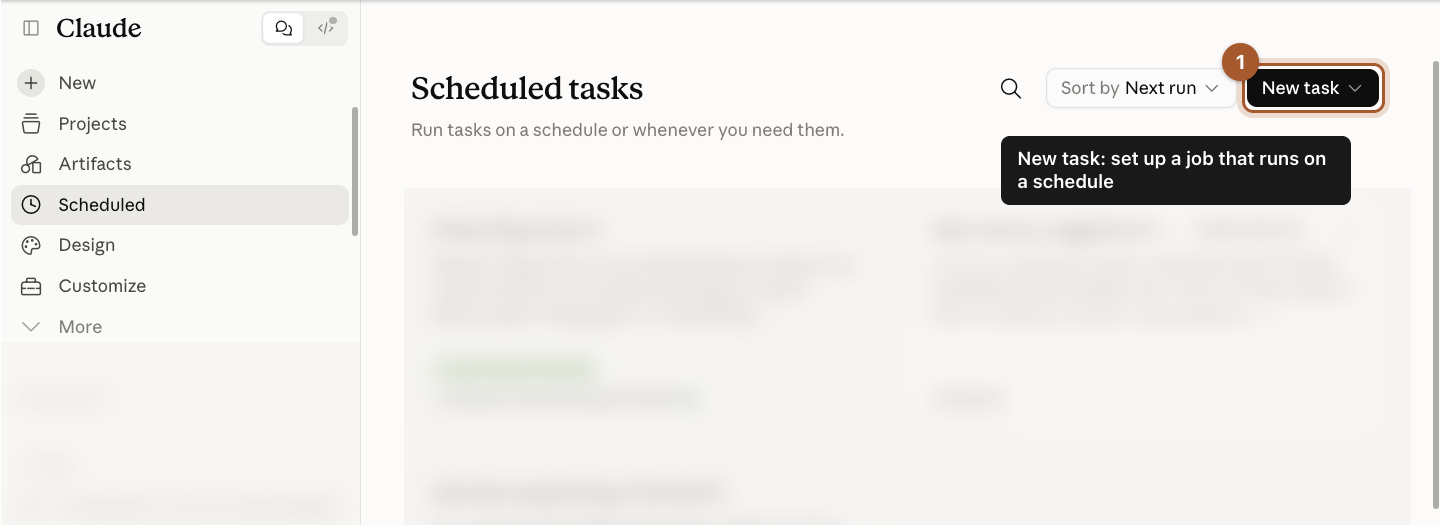
Click Scheduled in the left menu. This page lists your scheduled tasks. Click New task in the top right.
Step 2: Choose Create with Claude or Set up manually
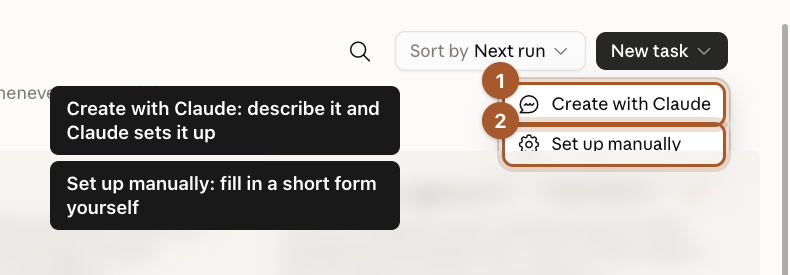
- Create with Claude: describe what you want and Claude sets it up.
- Set up manually: fill in a short form yourself.
The form is simple and shows you every setting, so we'll use Set up manually.
Step 3: Fill in the name, instructions and schedule
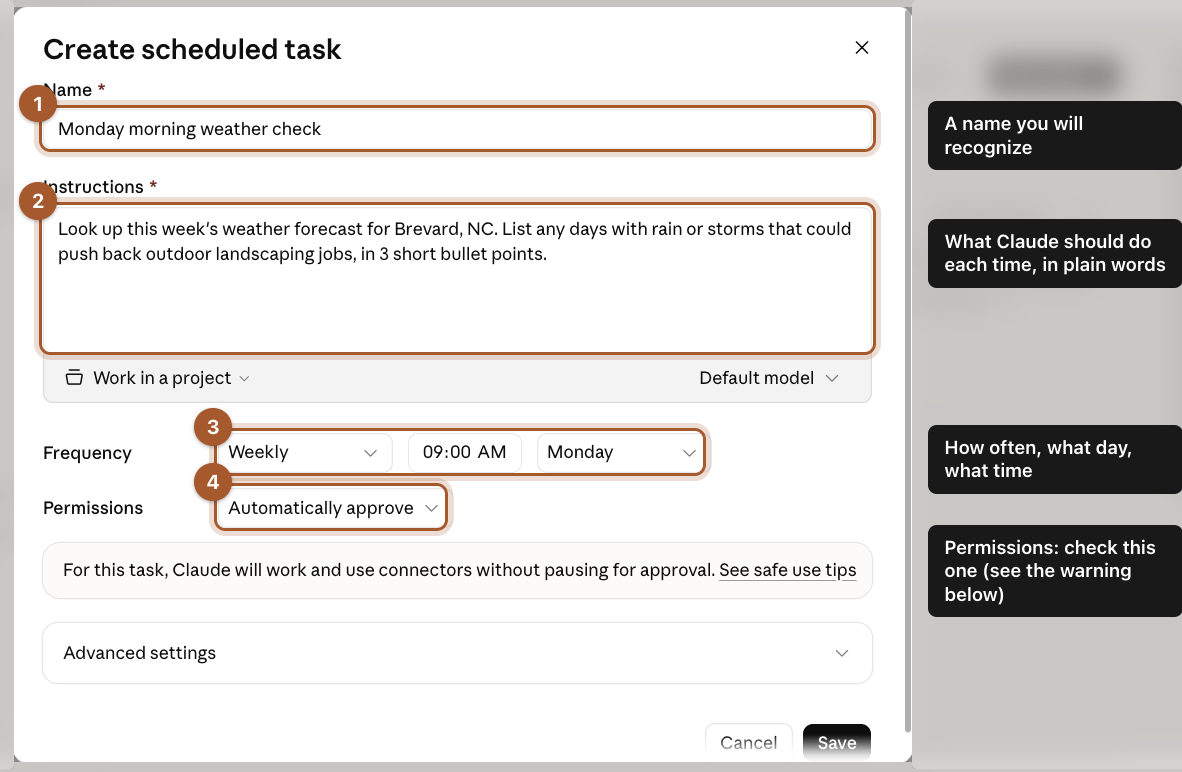
- Name: something you'll recognize, like "Monday morning weather check".
- Instructions: what Claude should do each time, in plain words. We wrote:
Look up this week's weather forecast for Brevard, NC. List any days with rain or storms that could push back outdoor landscaping jobs, in 3 short bullet points.
- Frequency: how often, what day and what time.
- Permissions: covered in the next step.
Step 4: Pick how often it runs
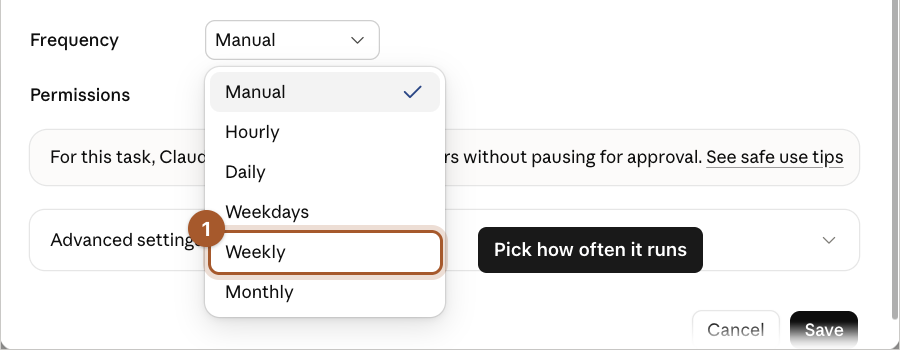
Click Frequency and choose Manual, Hourly, Daily, Weekdays, Weekly or Monthly. Then set the day and time. We picked Weekly, Monday, 9:00 AM.
Step 5: Check the Permissions setting before you save
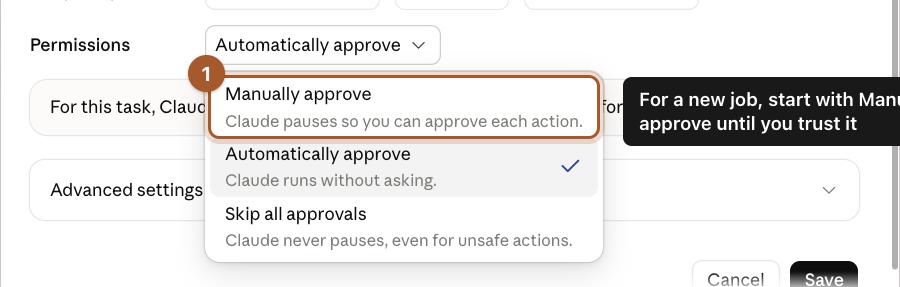
This is the one setting to slow down on. On a new scheduled task, it starts as Automatically approve, meaning Claude runs without stopping to ask you.
- Manually approve: Claude pauses so you can approve each action.
- Automatically approve: Claude runs without asking.
- Skip all approvals: Claude never pauses, even for unsafe actions.
When you're happy, click Save.
A real one: quote follow-ups every Friday
The weather check only reads the web. Here's a scheduled job that does real work: every Friday morning, run the quote follow-ups skill on the open quotes list and have the drafts waiting when you sit down. It uses three things from earlier guides: a Project that holds the list, the skill that knows the rules, and a schedule.
Step 6: Add the list to a Project, then schedule from there
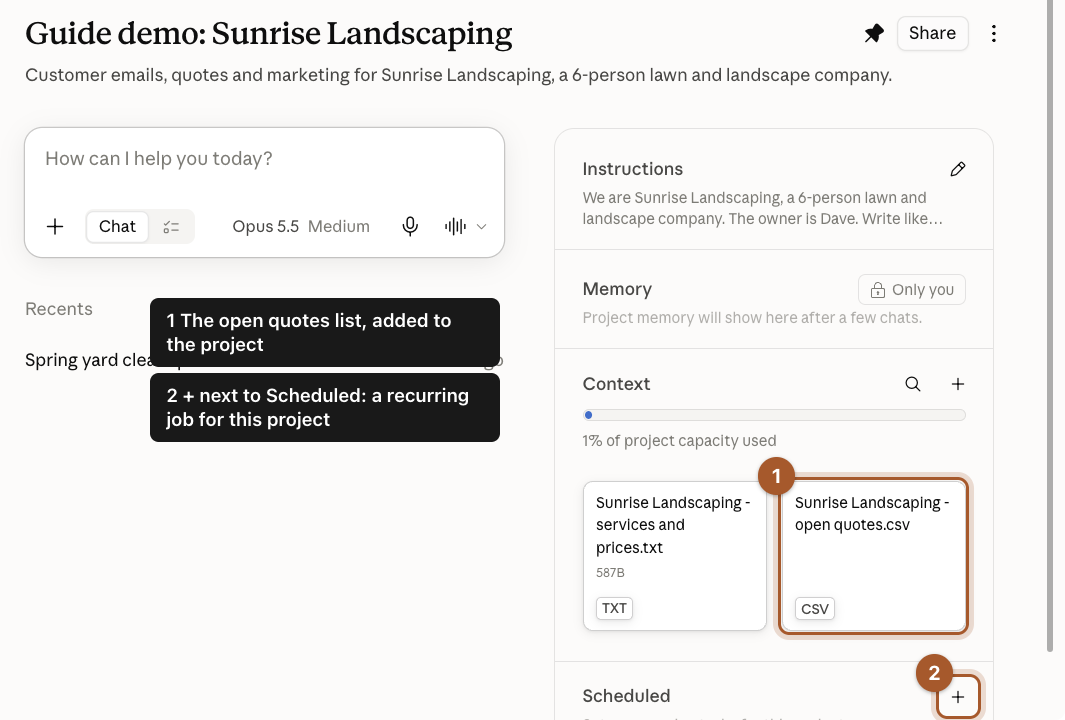
- Open your business's Project and add the open quotes list to its files with the + next to Context. Now the scheduled job can read it every week.
- Scroll down the right side to Scheduled and click its +. A task started here works inside this Project, with its instructions and files.
Step 7: Write instructions that point at the skill and repeat the rules
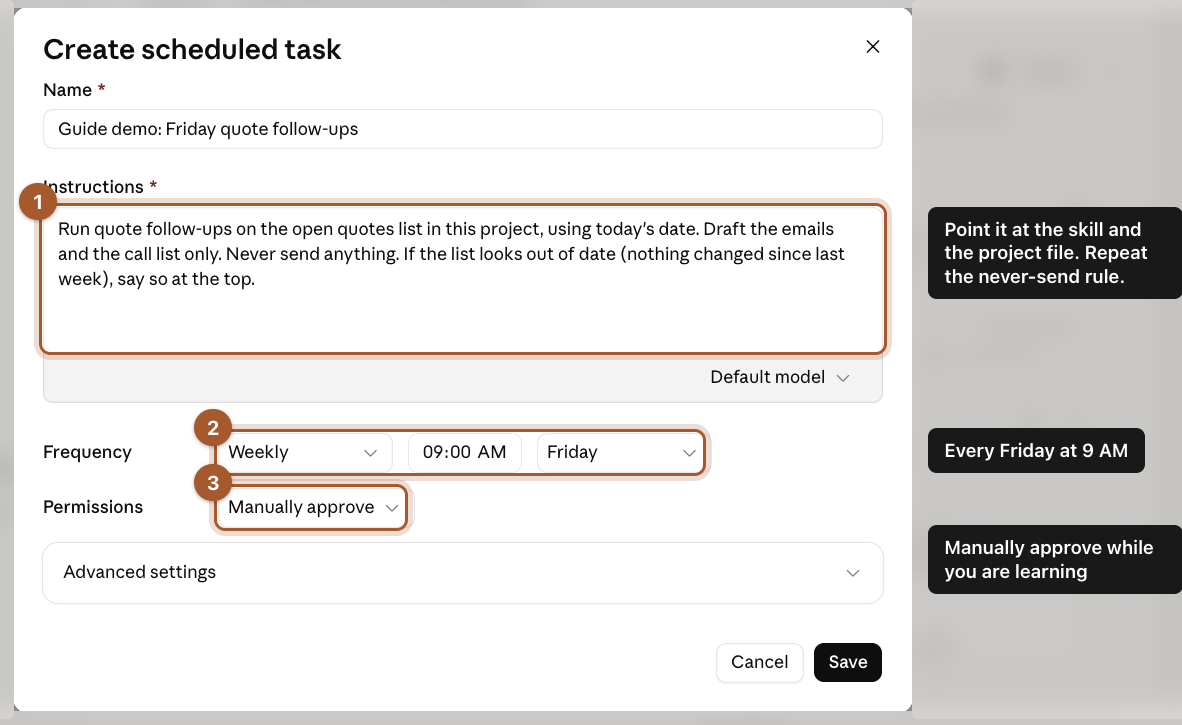
- Instructions: name the skill and the file, and repeat the one rule that matters most. We wrote:
Run quote follow-ups on the open quotes list in this project, using today's date. Draft the emails and the call list only. Never send anything. If the list looks out of date (nothing changed since last week), say so at the top.
- Frequency: Weekly, Friday, 9:00 AM.
- Permissions: Manually approve while you're learning what it does.
Click Save.
Step 8: Find it on the Scheduled page
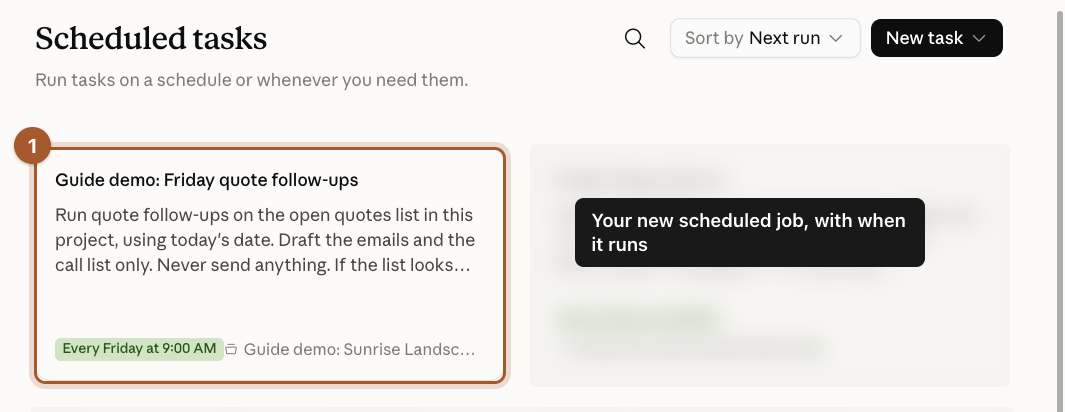
The new job shows on the Scheduled page with when it runs and which Project it belongs to. Click it to open its page.
Step 9: Test it with Run now before Friday
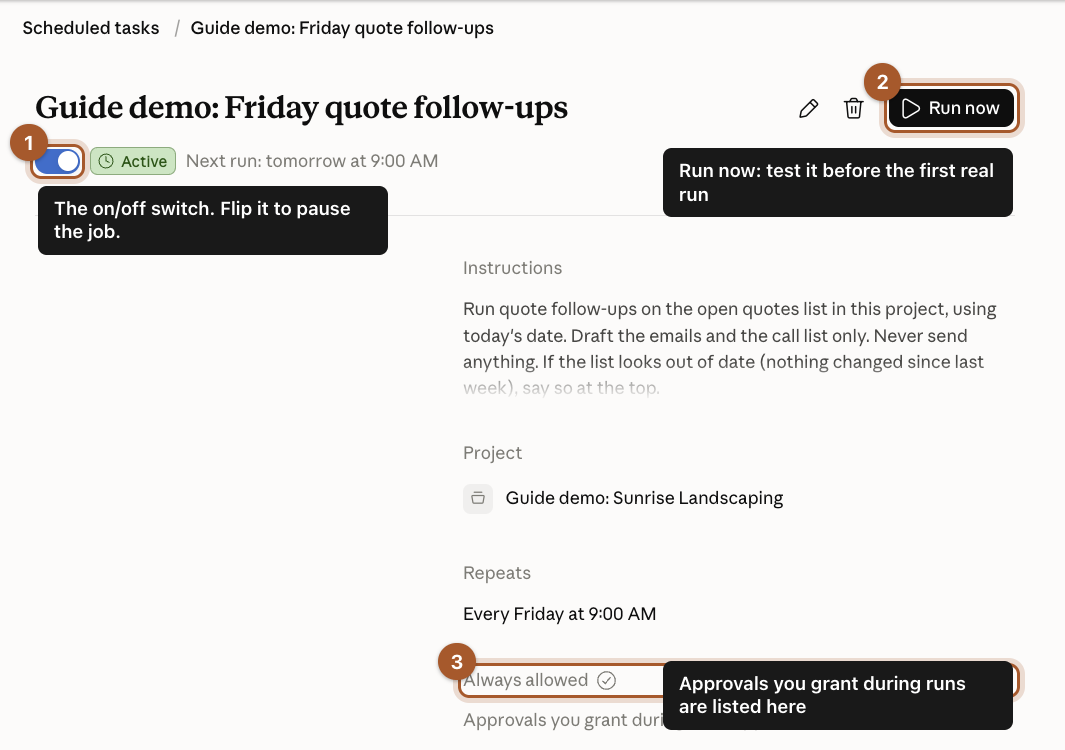
The task's page has everything in one place:
- The on/off switch. Flip it to pause the job.
- Run now. Runs it once right away, so you can check it before the first real Friday. Always do this.
- Always allowed. Any approvals you grant during runs show up here, so you can see exactly what it's allowed to do on its own.
Click Run now.
Step 10: Check what the run did
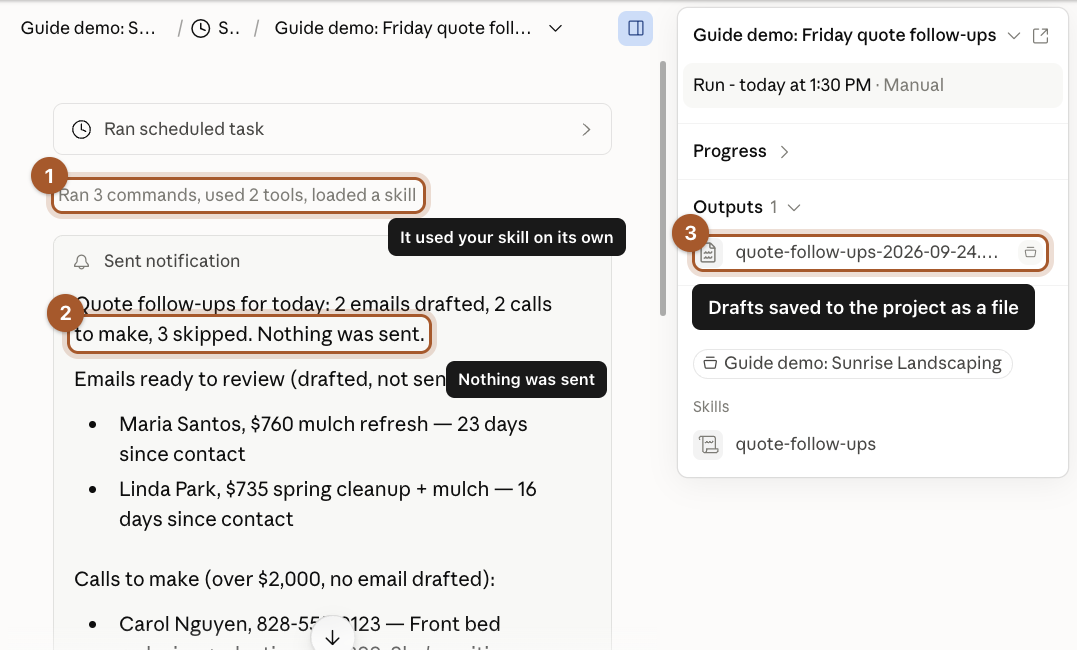
Open the run from the task's History. Ours took about a minute:
- It used the skill on its own. The instructions only said "run quote follow-ups".
- Nothing was sent. It sent a notification to the Claude app with the summary: 2 emails drafted, 2 calls to make, 3 skipped.
- The drafts were saved as a file in the Project, ready to copy into email.
Read the drafts and check them against the list, the same way you did when you built the skill.
Step 11: Know where the off switch is
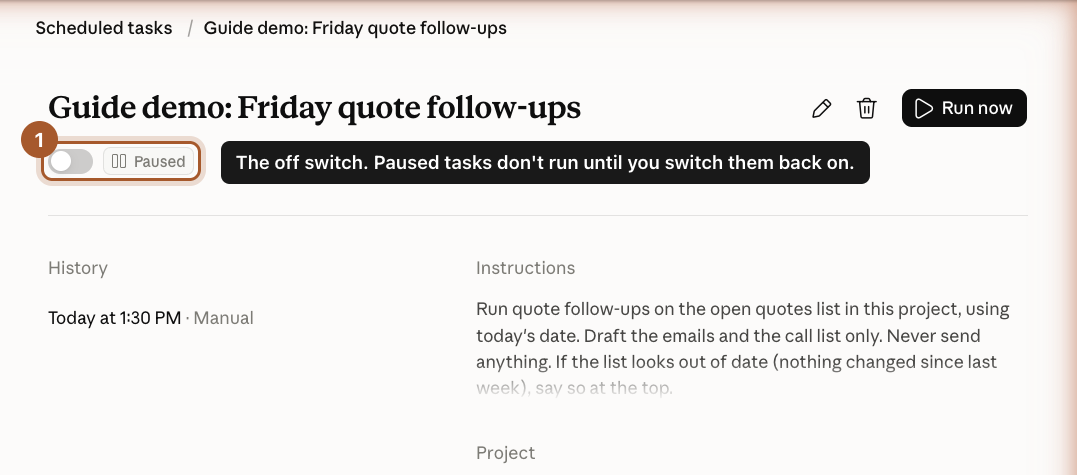
To stop the job, flip the switch on its page. It shows Paused, and it won't run until you switch it back on. Nothing is deleted, so you can turn it back on next season.
If a run ever looks wrong, pause first and figure it out second.
Good first scheduled jobs
- Monday: the week's weather for your service area.
- Every weekday morning: "What's on my calendar today, and what do I need to prepare?" (with the calendar connector).
- Friday: "Summarize this week's customer emails and list anything I didn't answer."
- First of the month: "Remind me which subscriptions renew this month."
Screenshots taken September 24, 2026. Claude changes its look now and then. If a button has moved, look for the same words nearby.