If you find yourself typing the same long instructions again and again ("write the appointment text like this, keep it under 40 words, sign it Dave"), that's a job for a skill.
A skill is a saved set of instructions for one job. You don't have to paste it. When you ask for that job, Claude recognizes it and uses the skill on its own.
Step 1: Find Skills in Customize
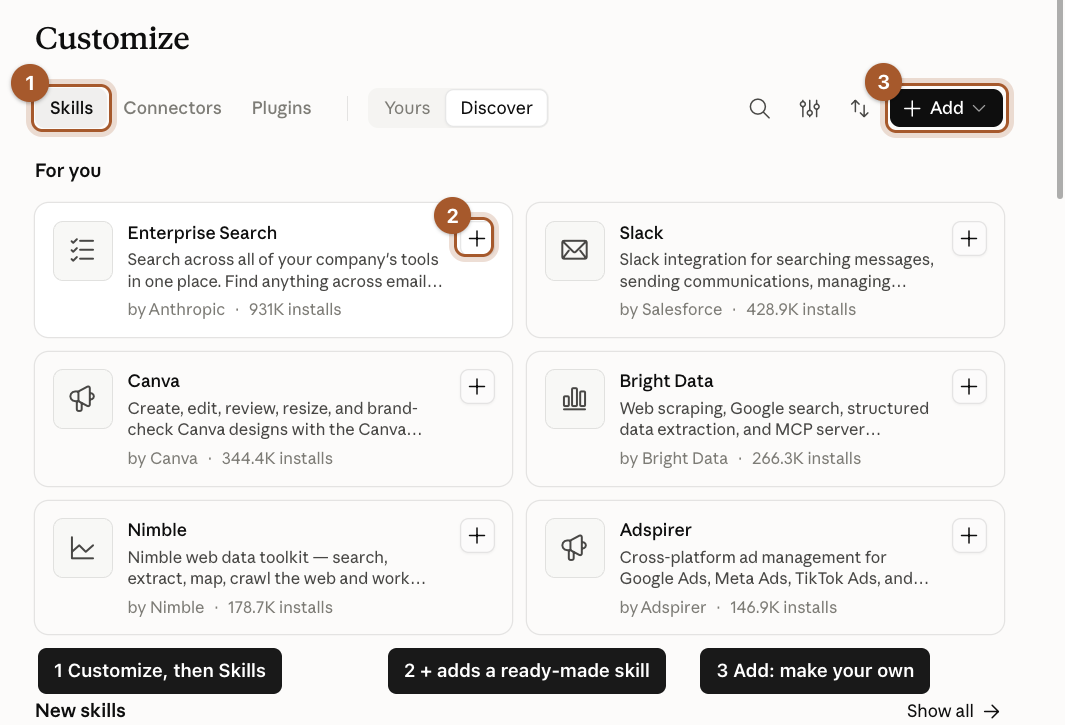
Click Customize in the left menu, then Skills at the top.
- Skills shows the skills you have (under Yours) and ones you can add (under Discover).
- The + on a card adds a ready-made skill, for example one made by a company whose app you use.
- Add is for making your own.
Step 2: Click Add, then Create with Claude
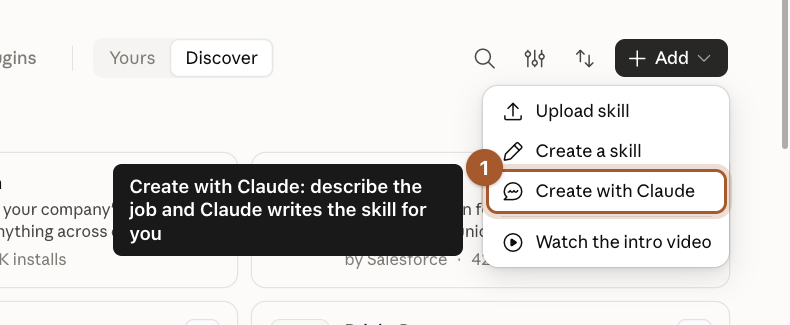
Click Add and choose Create with Claude. This is the easiest way: you describe the job in plain words and Claude writes the skill.
Step 3: Send the request Claude fills in for you
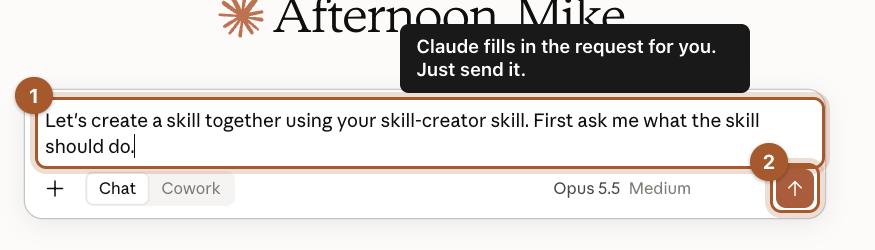
A new chat opens with the request already typed. Click the send arrow.
Step 4: Describe the job
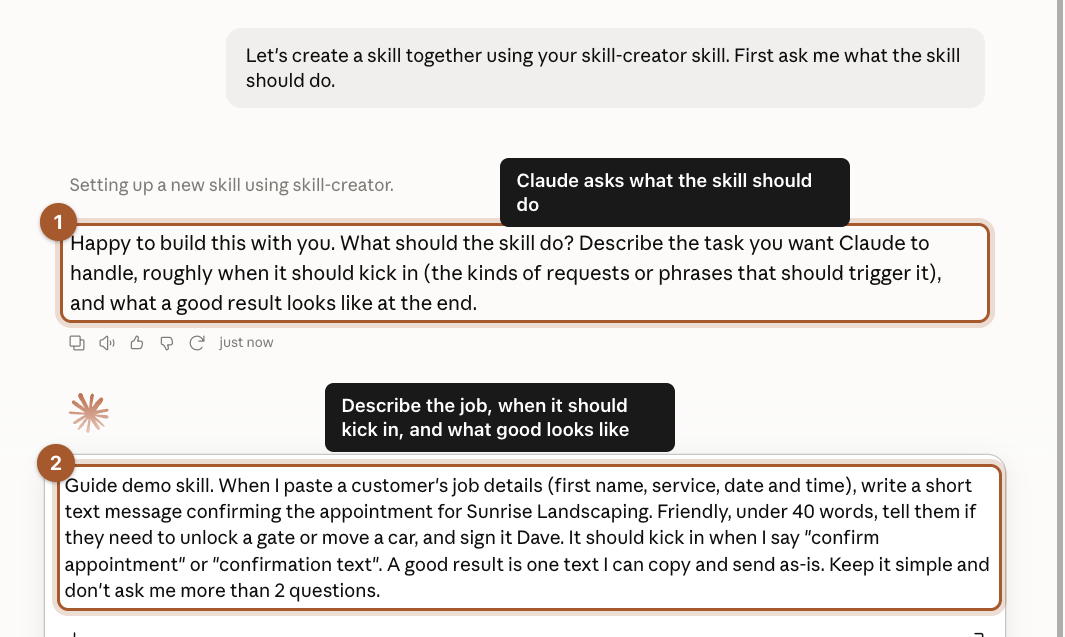
Claude asks three things: what the skill should do, when it should kick in, and what a good result looks like. Answer all three in one message. Ours:
When I paste a customer's job details (first name, service, date and time), write a short text message confirming the appointment for Sunrise Landscaping. Friendly, under 40 words, tell them if they need to unlock a gate or move a car, and sign it Dave. It should kick in when I say "confirm appointment" or "confirmation text". A good result is one text I can copy and send as-is.
Step 5: Read the skill, then save it
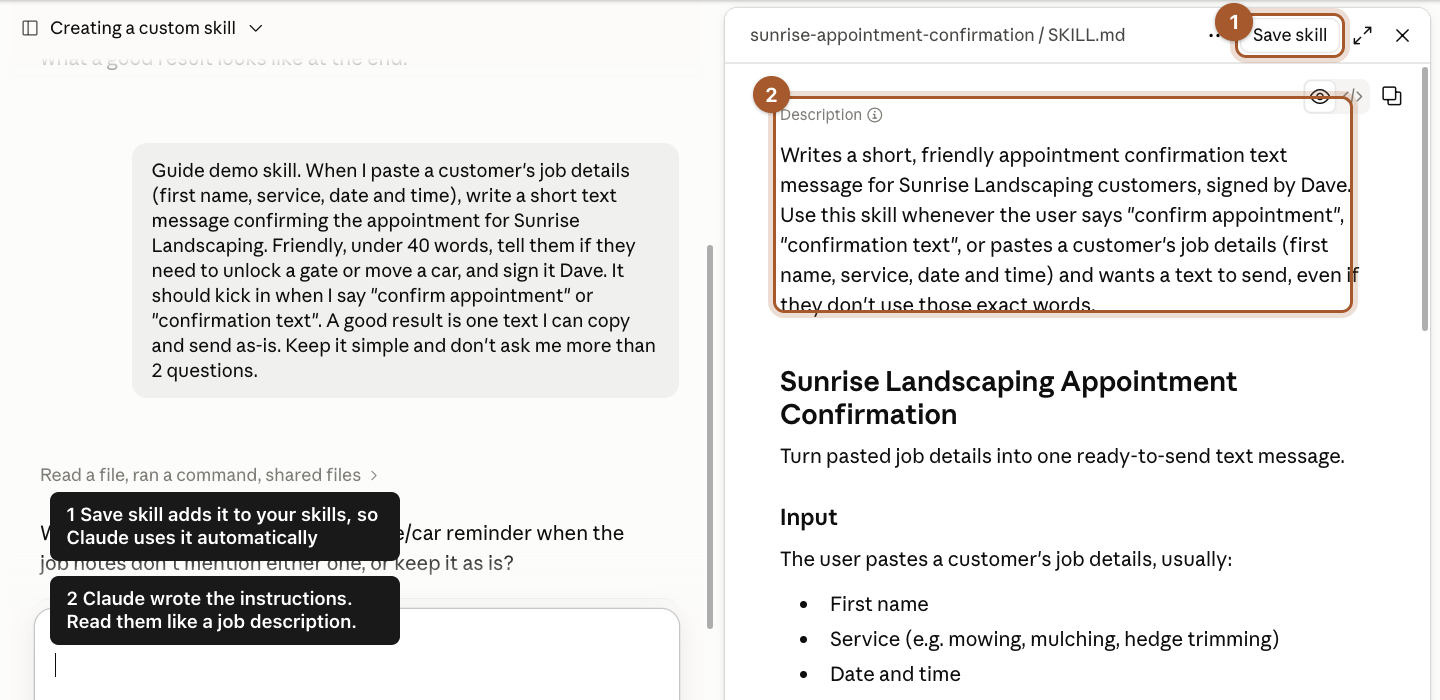
Claude writes the skill and opens it on the right. Read it like a job description: the rules, what to do if details are missing, and an example. Ours even included "ask for the missing piece instead of guessing". Claude may ask you a question or two to tighten it.
When it looks right, click Save skill. From then on, typing "confirmation text" and pasting a customer's details gets you the text, with no instructions needed.
A skill that does real work: quote follow-ups
A confirmation text is a small job. Skills get more useful when the job has rules and judgment calls. Our example: every week, someone at our made-up landscaping company should check the open quotes list and follow up with anyone who has gone quiet. It's the kind of job that slips, and every quote that slips is lost money.
We'll use the same skill in the next two guides, where we put it on a schedule and then turn it into an agent.
Step 6: Give it a real example and the rules
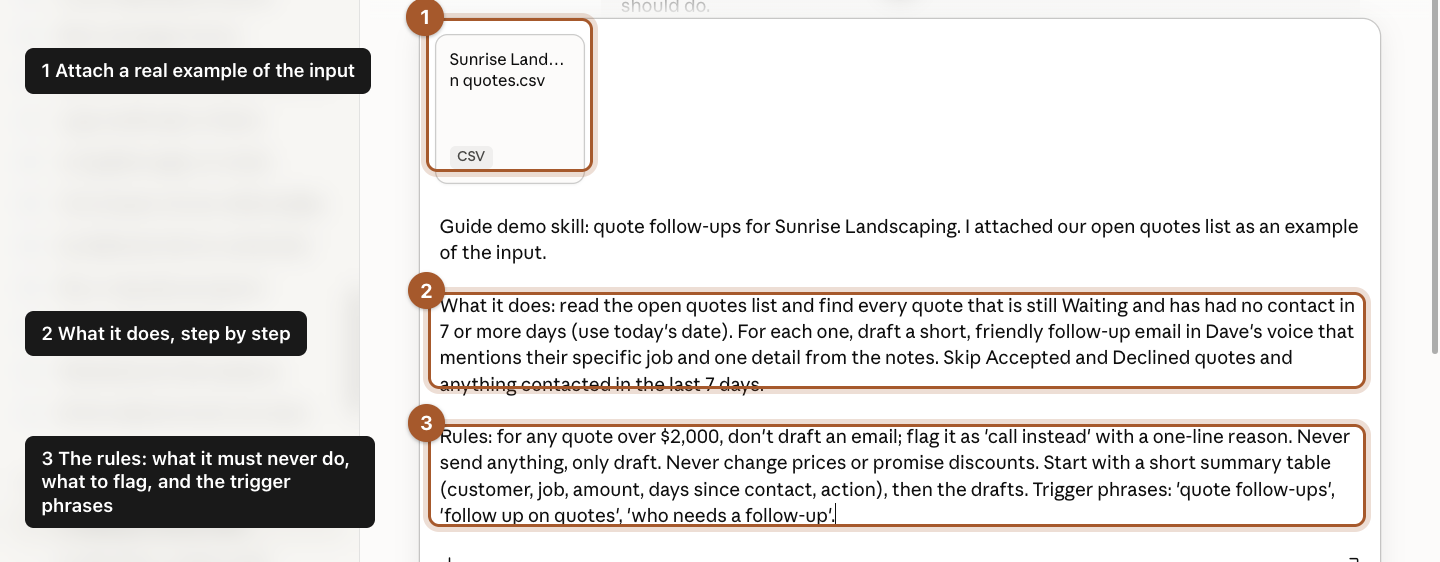
Start with Add > Create with Claude as before, and give Claude three things:
- A real example of the input. We attached our open quotes list (a CSV exported from a spreadsheet: customer, job, amount, status, last contact, notes).
- What it does, step by step.
- The rules: what it must never do, what to flag, and the phrases that should trigger it.
Skill: quote follow-ups. I attached our open quotes list as an example of the input.

What it does: read the open quotes list and find every quote that is still Waiting and has had no contact in 7 or more days (use today's date). For each one, draft a short, friendly follow-up email in my voice that mentions their specific job and one detail from the notes. Skip Accepted and Declined quotes and anything contacted in the last 7 days.

Rules: for any quote over $2,000, don't draft an email; flag it as "call instead" with a one-line reason. Never send anything, only draft. Never change prices or promise discounts. Start with a short summary table (customer, job, amount, days since contact, action), then the drafts. Trigger phrases: "quote follow-ups", "follow up on quotes", "who needs a follow-up".
Step 7: Watch it test the skill on your file
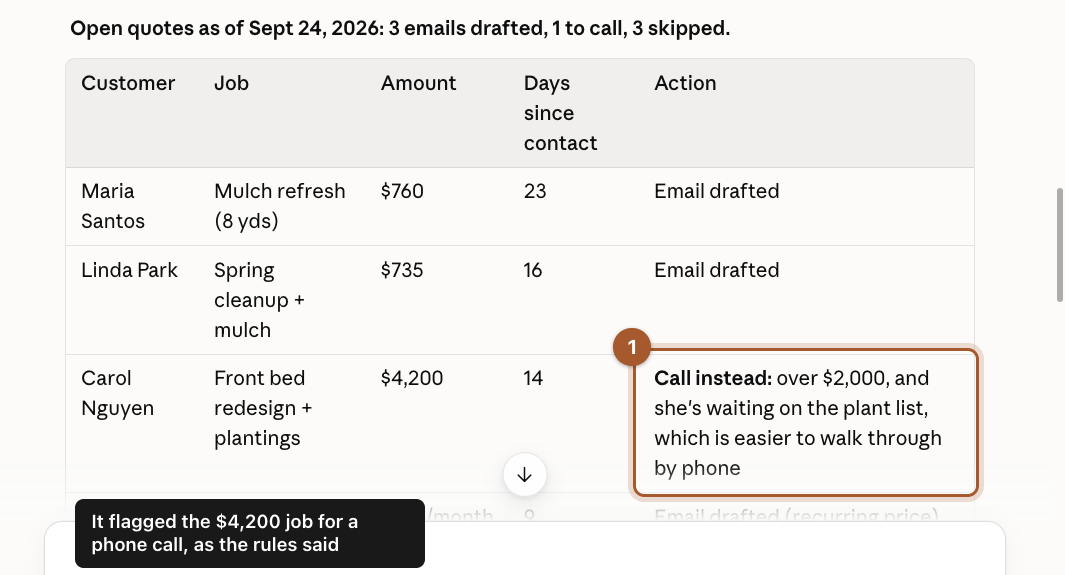
Claude wrote the skill and then ran it on our list to show the result: a summary table, then the email drafts. It followed the rules, including flagging the $4,200 job for a phone call instead of an email.
Read the drafts the way a customer would. Are they short? Do they mention the right job? Is anything promised that you wouldn't promise?
Step 8: Answer its judgment calls
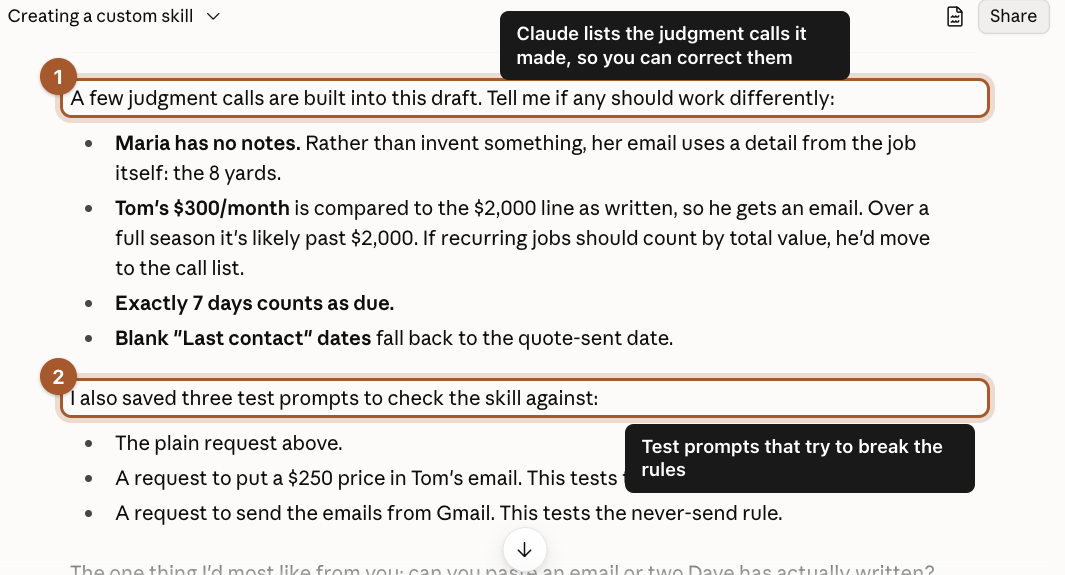
This is the part that makes a good skill:
- Claude lists the judgment calls it made, so you can correct them. Ours: a $300-a-month mowing customer was under the $2,000 line, so he got an email. But over a season he's worth more than that.
- It saved test prompts that try to break the rules, like asking it to put a discount in an email or to send the emails. A good skill says no to both.
We answered the mowing question in one line:
Good calls. One change: count recurring jobs by their full-season value (our mowing season is 7 months), so he goes on the call list. Everything else is right. Update the skill.
Step 9: Save the skill
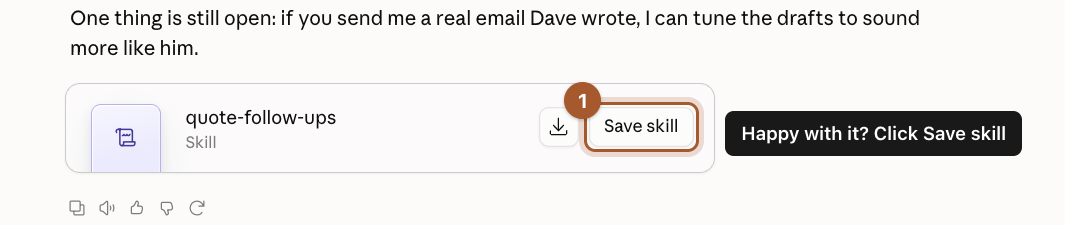
When you're happy with it, click Save skill on the skill card.
Step 10: Use it with just a trigger phrase
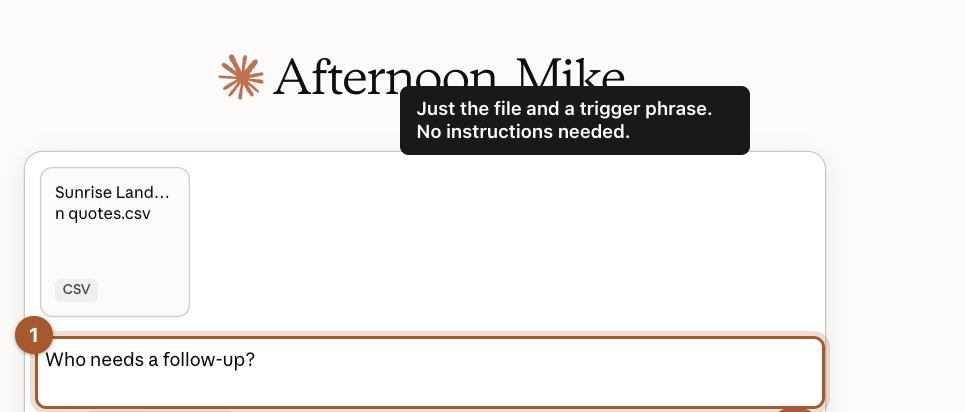
Now start a New chat, attach this week's list and type one of your trigger phrases, like Who needs a follow-up? No instructions needed.
Step 11: Check that your correction stuck
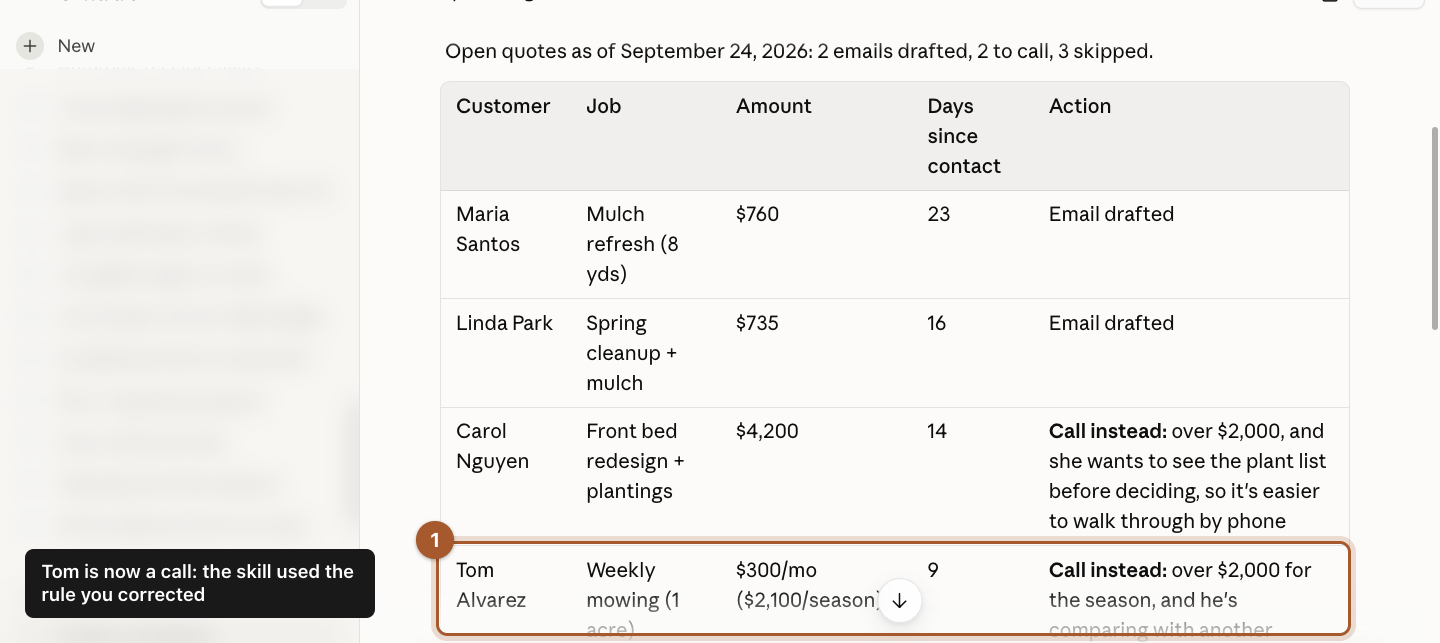
The skill ran with all the rules, including the one we corrected: the $300-a-month mowing customer is now on the call list at $2,100 for the season. Two emails drafted, two calls to make, three skipped, and nothing sent.
Jobs that make good skills
- Appointment confirmations and reminders.
- Answering online reviews in your style.
- Turning a job's notes into an invoice description.
- Writing a weekly update to a client in the same format every time.
- Checking a quote against your price list before it goes out.
Screenshots taken September 24, 2026. Claude changes its look now and then. If a button has moved, look for the same words nearby.